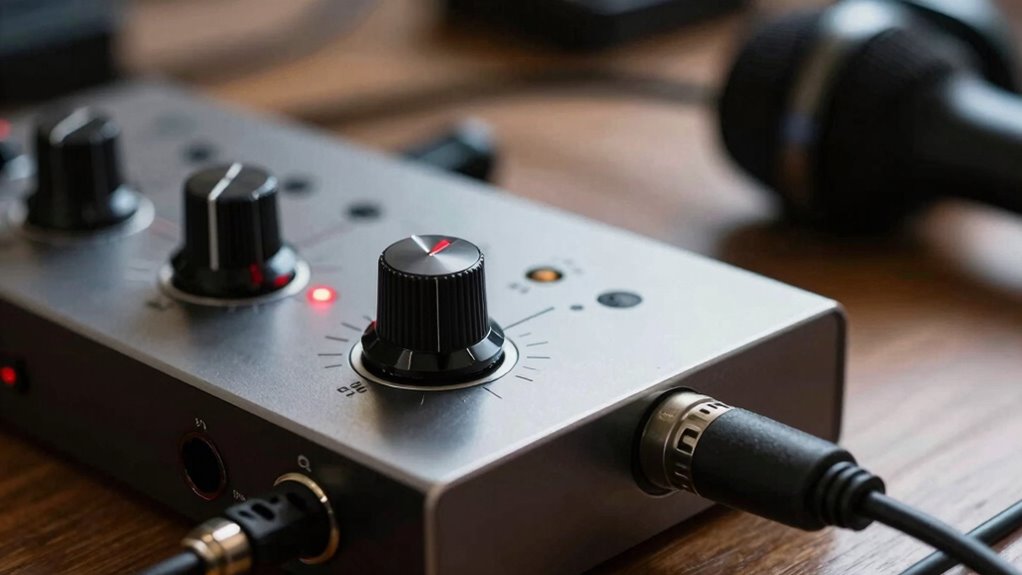

Many beginners mistake adjusting gain too high, causing distorted sound or clipping. They also often turn on phantom power unnecessarily, which can damage certain microphones or produce noise. Always set the gain correctly for clear audio without distortion, and only activate phantom power when using condenser mics that need it. Avoid rushing these steps, as proper gain and phantom power settings are key to high-quality recordings. Keep exploring to avoid these common pitfalls and get your setup right.
Key Takeaways
- Incorrect gain settings can cause distortion or a weak signal; start with low gain and adjust slowly.
- Forgetting to turn on phantom power when using condenser microphones results in no sound or poor quality.
- Over-gaining can introduce noise and clipping, while under-gaining reduces signal clarity; find a balanced level.
- Not verifying interface compatibility with phantom power and microphone impedance can lead to equipment damage or poor sound.
- Relying solely on automatic gain controls may not optimize sound quality; manual adjustment ensures better results.
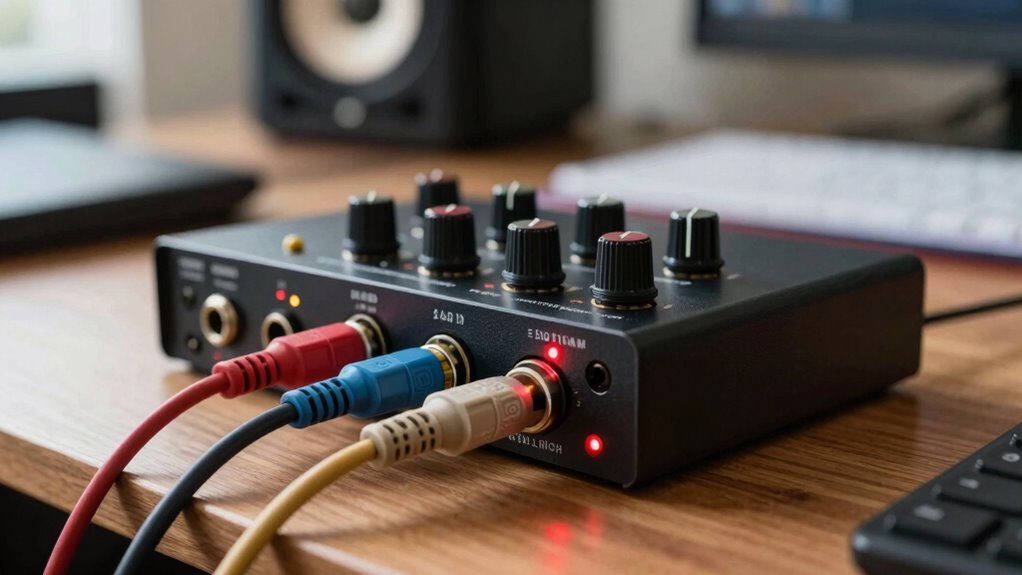
An audio interface is a essential device that connects your musical instruments, microphones, and other audio sources to your computer, enabling high-quality recording and playback. When starting out, one of the most common mistakes beginners make is overlooking the importance of proper microphone selection and ensuring interface compatibility. These choices directly impact your sound quality and overall recording experience, so it’s fundamental to get them right from the beginning.
First, consider your microphone selection carefully. Not all microphones are created equal, and choosing the right type can make or break your recordings. For example, if you’re recording vocals, a condenser microphone is usually the best choice because of its sensitivity and ability to capture detailed sound. On the other hand, dynamic microphones are more rugged and better suited for loud sound sources like guitar amps or live performances. Picking the wrong microphone for your intended use can lead to poor sound quality or excessive noise, which is frustrating to fix later.
Equally important is understanding interface compatibility. Your audio interface needs to support the type of microphones you plan to use. Many beginner interfaces only have XLR inputs designed for microphones, but some might lack phantom power, which is essential for condenser mics. Phantom power supplies the necessary voltage to operate these sensitive microphones, so if your interface doesn’t provide it, your condenser mic won’t work properly. Additionally, check if your chosen microphone’s impedance and connection type match what the interface can handle. Mismatched equipment can cause signal loss or distortion, undermining the clarity of your recordings.
Another common mistake is assuming all audio interfaces are compatible with every microphone. While most interfaces support standard XLR microphones, some might have limitations or require adapters. Confirm that your interface’s inputs and outputs align with your microphone’s specifications. If you plan to expand your setup later, choose an interface with enough inputs and flexibility to accommodate additional mics or instruments. This way, you avoid the hassle and expense of upgrading prematurely.
Finally, don’t forget about the software side of compatibility. Your interface should work seamlessly with your digital audio workstation (DAW). Most modern interfaces are class-compliant, meaning they don’t need special drivers, but double-check that your system recognizes the device and that it integrates well with your recording software. Compatibility issues can lead to latency, dropped signals, or setup headaches that hinder your workflow. Knowing about audio interface compatibility can help you avoid these pitfalls and ensure a smooth recording experience.
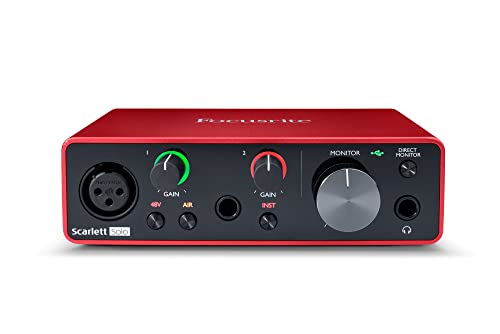
Focusrite Scarlett Solo 3rd Gen USB Audio Interface for Guitarists, Vocalists, Podcasters or Producers to record and playback studio quality sound
Pro performance with great pre-amps – Achieve a brighter recording thanks to the high performing mic pre-amps of…
As an affiliate, we earn on qualifying purchases.
As an affiliate, we earn on qualifying purchases.
Frequently Asked Questions
Can Phantom Power Damage Dynamic Microphones?
No, phantom power typically doesn’t damage dynamic microphones because they’re generally not phantom power compatible. Dynamic microphones are designed to handle their own power requirements and don’t rely on phantom power, so applying it usually won’t harm them. However, always double-check your microphone’s specifications to verify safety. Using phantom power on incompatible microphones can cause issues, but with dynamic mics, they’re usually safe, making them a reliable choice for beginners.
How Do I Correctly Set Gain Levels for Vocals?
To correctly set gain levels for vocals, start by positioning your microphone close to the singer’s mouth to guarantee clear capture. Gradually turn up the gain until the signal reaches about 75-80% of your interface’s meter, avoiding signal clipping. Keep an eye on the levels as the singer performs, adjusting if they get louder or softer, to maintain a clean, distortion-free sound.
Is Phantom Power Necessary for All Condenser Microphones?
When it comes to condenser microphones, the phantom power necessity is a must-have, not a maybe. You can’t just wing it; these mics rely on phantom power to operate properly. Without it, your condenser mic won’t pick up sound or work correctly. So, if you’re using a condenser microphone, make sure your audio interface supplies phantom power, or you’ll be chasing your tail trying to get good recordings.
What Are Common Signs of Incorrect Gain Settings?
You’ll notice common signs of incorrect gain settings when your audio sounds distorted or reaches signal clipping, which causes harsh, unpleasant sounds. If your levels are too high, the signal clips, and if they’re too low, your recordings may be noisy or faint. Proper gain staging guarantees a clean, balanced sound, so adjust your gain carefully—avoid pushing it too high or too low—and listen for clarity.
How Do I Troubleshoot Noise Issues Caused by Phantom Power?
Imagine you’re tuning a delicate instrument, and a ground loop causes unwanted noise. To troubleshoot phantom power issues, first check your cables—they should be high quality and properly shielded. Make certain your audio interface and equipment are grounded correctly. If noise persists, try disconnecting other gear to identify interference. Proper grounding and quality cables eliminate ground loops, reducing noise and ensuring clean, professional sound.
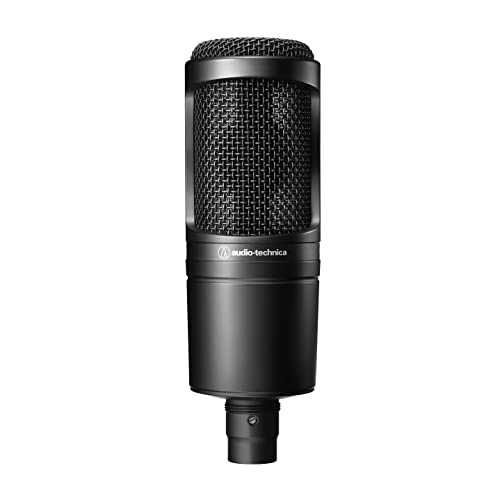
Audio-Technica AT2020 Cardioid Condenser Studio XLR Microphone, Ideal for Project/Home Studio Applications, Black
The price/performance standard in side address studio condenser microphone technology
As an affiliate, we earn on qualifying purchases.
As an affiliate, we earn on qualifying purchases.
Conclusion
So, next time you’re plugging in your audio interface, don’t let those gain and phantom power mistakes turn your studio into a chaotic noise disaster. Remember, a tiny misstep can turn your crystal-clear vocals into a screeching mess or fry your precious equipment faster than you can say “audio catastrophe.” Stay sharp, double-check those settings, and keep your sound smooth and professional. Otherwise, you might just release the audio equivalent of a wild herd of elephants in your bedroom!

Cable Matters 2-Pack Premium XLR to XLR Cables – 6ft, Male to Female Microphone Cable, Oxygen-Free Copper (OFC) Mic Cord, Black
Professional Audio Quality: Our XLR microphone cable is expertly crafted for use with professional microphones and recording equipment….
As an affiliate, we earn on qualifying purchases.
As an affiliate, we earn on qualifying purchases.
Focusrite Scarlett Solo 3rd Gen USB Audio Interface for Guitarists, Vocalists, Podcasters or Producers to record and playback studio quality sound
Pro performance with great pre-amps – Achieve a brighter recording thanks to the high performing mic pre-amps of…
As an affiliate, we earn on qualifying purchases.
As an affiliate, we earn on qualifying purchases.