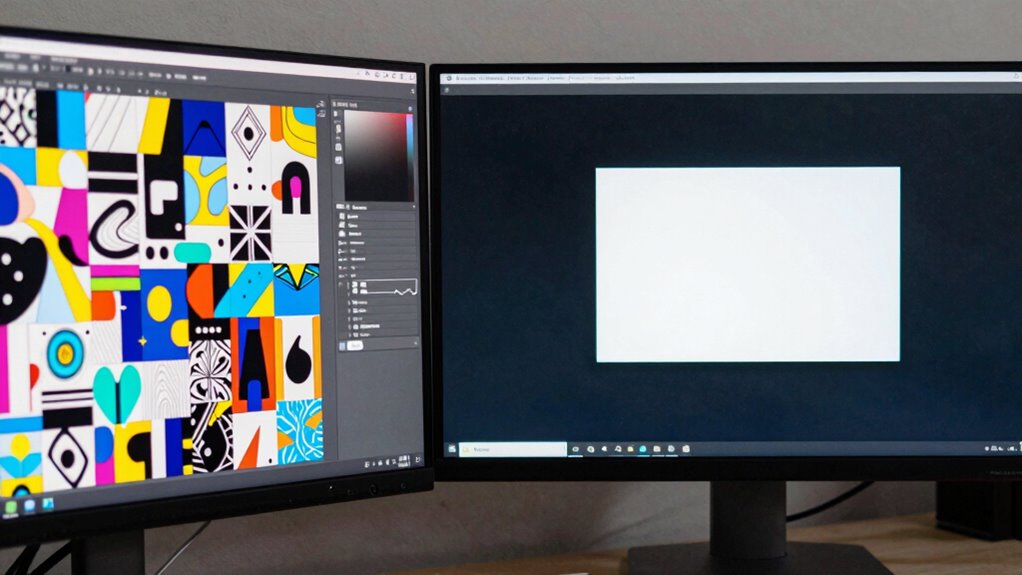

Dual screens can boost your productivity, but only up to a point. If you don’t position them ergonomically, you might experience neck strain, eye fatigue, or distraction from constant task switching. Too many screens can create clutter and reduce focus, making you less efficient. Recognizing your work habits and tasks helps find the perfect balance. Want to discover how to optimize your setup and avoid the common pitfalls? Keep exploring to learn more.

Get the latest gadgets delivered free — and shop member deals
- Fast, free delivery on millions of items
- Access to Prime Big Deal Days deals on October 6–7
- Prime Video, Amazon Music and more included
Key Takeaways
- Dual screens can cause distractions and task-switching, reducing focus and productivity for certain tasks.
- Improper ergonomic setup on dual monitors may lead to physical discomfort, outweighing potential efficiency gains.
- Not all work benefits from multiple displays; task complexity and individual work habits influence effectiveness.
- Visual fatigue increases if monitors are poorly positioned, negating the ergonomic advantages of dual screens.
- Personal preferences and workspace clutter can diminish the advantages of dual screens, making them counterproductive for some users.
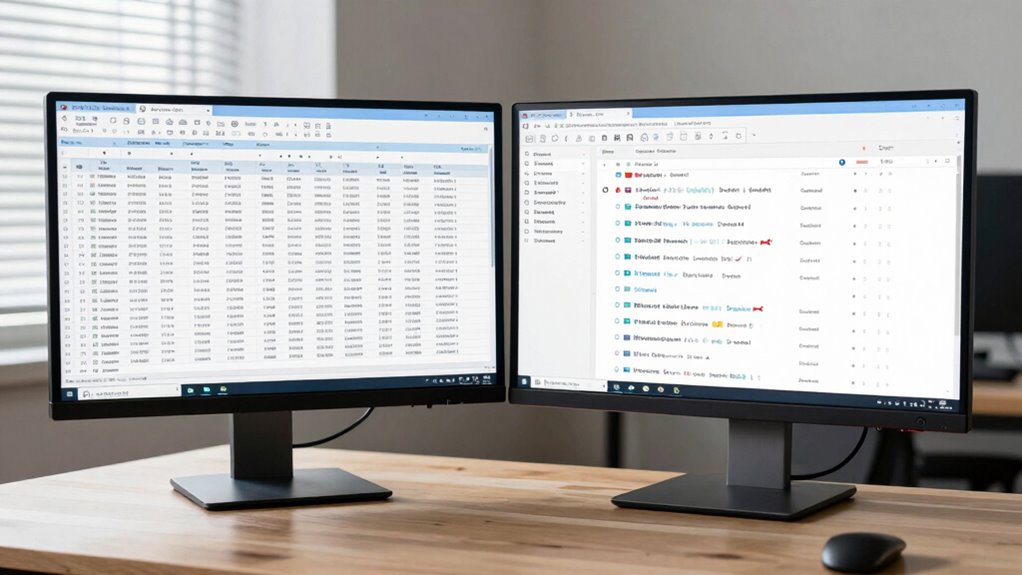
The era of single-screen devices is rapidly coming to an end as dual screens become increasingly mainstream. While this shift promises increased productivity, it’s vital to recognize that dual screens aren’t always the best fit for everyone or every task. You might find that the extra display space offers benefits at first, but over time, the reality can be more nuanced. Before fully embracing dual monitors, consider how ergonomic adjustments and productivity metrics come into play.
One of the first things you need to do when setting up dual screens is guaranteeing proper ergonomic adjustments. Without correct positioning, you risk neck strain, eye fatigue, and poor posture, which can negate any productivity gains. You should position the monitors at eye level and at a comfortable distance to avoid hunching or craning your neck. Adjust the height and tilt of each screen so your eyes naturally fall in the upper third of the display. A good ergonomic setup minimizes discomfort and helps maintain focus over longer periods. If your workspace isn’t configured properly, you might find yourself spending more time adjusting or experiencing physical strain, ultimately reducing the efficiency that dual screens aim to provide. Recognizing the ergonomic principles behind monitor placement can make a significant difference in long-term comfort and productivity. Additionally, understanding visual ergonomics can help prevent eye strain caused by prolonged screen exposure. Incorporating ergonomic best practices into your setup can further enhance comfort and reduce fatigue over extended use. Being aware of these principles can also help you customize your workspace to better suit your individual needs.
Beyond comfort, you need to evaluate how dual screens impact your productivity metrics. While it’s tempting to assume that more screen space automatically translates into faster work and better output, that’s not always the case. Some tasks benefit from multiple displays—such as coding, graphic design, or data analysis—where you need to reference multiple sources simultaneously. However, if your work involves deep concentration or creative thinking, the added screens can become distractions, causing you to switch focus more often. Over time, this can lower your overall productivity, especially if you’re juggling tasks that require intense mental effort. It’s essential to monitor your own productivity metrics—such as task completion times and error rates—to determine whether dual screens genuinely enhance your workflow or if they’re simply a visual overreach. Additionally, user preferences and individual work habits play a significant role in whether dual screens improve efficiency or create unnecessary clutter. Recognizing these individual differences can help you make more informed decisions about your workspace setup.
As an affiliate, we earn on qualifying purchases.
Frequently Asked Questions
How Do I Determine if Dual Screens Improve My Productivity?
To see if dual screens boost your productivity, pay attention to your multitasking efficiency and how much screen real estate you need. If you find yourself frequently switching between windows or feeling cramped, adding a second monitor could help. Test it out for a week, and note whether your tasks become quicker and more seamless. If you notice less clutter and smoother workflow, dual screens are likely improving your productivity.
What Are Common Ergonomic Issues With Dual Monitor Setups?
Ever feel like your neck’s on a never-ending roller coaster? Poor ergonomic posture and monitor placement often cause this. Common issues include awkward neck twists, shoulder strain, and eye fatigue. To avoid these, align your monitors at eye level, keep them directly in front of you, and maintain a neutral sitting posture. Remember, proper ergonomic setup isn’t just comfort; it’s your productivity’s best friend.
Can Dual Screens Cause More Distractions Than Benefits?
Yes, dual screens can cause more distractions than benefits. You might fall into multitasking pitfalls, frequently switching between windows and losing focus. Visual clutter from overlapping or poorly arranged screens can overwhelm your workspace, making it harder to concentrate on tasks. If you don’t organize your monitors well, the extra screen space might hinder productivity rather than boost it, especially when it leads to constant distractions and a cluttered visual environment.
What Are the Best Practices for Managing Multiple Screens Effectively?
You should prioritize effective screen arrangement by positioning your monitors to minimize neck strain and guarantee easy visibility. Calibrate colors on each screen for consistency, reducing eye fatigue and distraction. Use consistent layouts and organize your workspace to keep relevant windows on specific screens. Limit multitasking to avoid clutter, and consider using dedicated work and distraction-free screens. These practices help you manage multiple screens efficiently, boosting your productivity and focus.
How Do Dual Screens Impact Gaming Performance?
Using dual screens can impact gaming performance by causing issues like screen flickering, which distracts and hampers gameplay. Proper color calibration guarantees consistent visuals across both monitors, reducing eye strain and improving immersion. However, running multiple displays demands more graphics power, possibly lowering frame rates. You should balance your setup by checking for flickering, calibrating colors, and verifying your hardware can handle the extra load for a smoother gaming experience.
Conclusion
Remember, dual screens are like a double-edged sword—offering great potential but also bringing added complexity. Know your own work style and tasks to find the sweet spot where extra screens boost productivity without turning your setup into a cluttered battlefield. When used wisely, they can be a launchpad for creativity and efficiency. But push too far, and they might just become a mirage, promising more than they can deliver. Stay mindful, and you’ll navigate the tipping point with ease.
Fall Picks
fall essentials
As an affiliate, we earn on qualifying purchases.