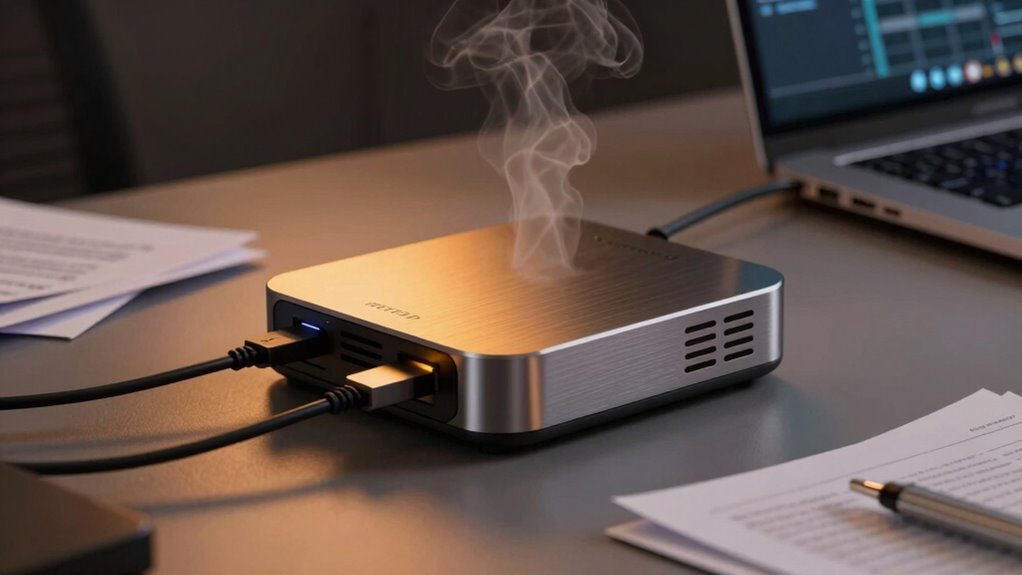

Docking stations run hot because they handle multiple high-power tasks at once, support various peripherals, and process data transfers. When you connect multiple devices or use features like wireless charging, the station works harder, generating more heat. Ignoring this warmth can lead to performance issues or damage over time. If you want to understand the real reasons behind these temperature increases and how to manage them effectively, keep exploring the details.

Get the latest gadgets delivered free — and shop member deals
- Fast, free delivery on millions of items
- Access to Prime Big Deal Days deals on October 6–7
- Prime Video, Amazon Music and more included
Key Takeaways
- Heat generation is a normal result of high-power tasks and data transfer in docking stations.
- Wireless charging adds extra energy transfer, increasing device temperature.
- Overloading or incompatible devices cause excessive heat, risking hardware damage.
- Proper device management and compatibility checks help prevent overheating.
- Monitoring and maintaining optimal setup ensures safety and prolongs device lifespan.
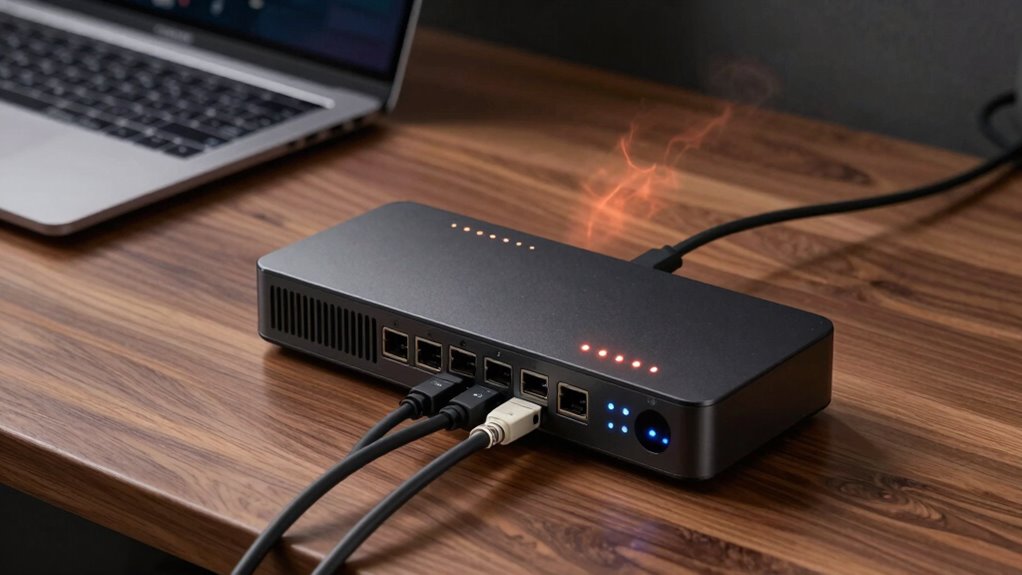
Docking stations often run hot because they handle multiple high-power tasks simultaneously, which generates significant heat. When you plug in your laptop, connect peripherals, and enable features like wireless charging, the device works hard to keep everything running smoothly. This increased workload causes components to generate heat, especially when the docking station is pushing power through various ports or supporting data transfers. While it’s common for these devices to warm up, ignoring the heat can lead to performance issues or even hardware damage over time.
If you rely on wireless charging through your docking station, you might notice additional heat buildup. Wireless charging is convenient, but it adds extra energy transfer that can elevate the device’s temperature. As your docking station supplies power wirelessly to compatible smartphones or earbuds, it works harder, which can sometimes lead to overheating. The heat isn’t necessarily a sign of a defect but rather a consequence of the high-energy transfer process. Still, if your docking station becomes excessively hot, it’s worth checking if it’s functioning properly or if it’s overloaded, especially when multiple devices are charging wirelessly at once.
Compatibility issues are another factor that can contribute to the heat your docking station generates. Not all docking stations support every device seamlessly. When incompatible devices are connected, the station may struggle to manage power distribution efficiently, causing components to work harder than they should. For example, if your device isn’t fully compatible with the docking station’s charging protocols or data transfer standards, it can lead to increased power draw, which translates into more heat. Ensuring your devices are compatible with your specific docking station model can help prevent unnecessary strain and heat buildup. Additionally, proper device management can help reduce the risk of overheating and ensure your setup remains safe. Being aware of your device’s power requirements can also help you avoid pushing your docking station beyond its capacity.
As an affiliate, we earn on qualifying purchases.
Frequently Asked Questions
Can Overheating Damage My Laptop or Connected Devices?
Yes, overheating can damage your laptop or connected devices. Excess heat hampers heat dissipation, which is essential for preventing components from overheating. Over time, this can reduce device longevity and cause hardware failures. To protect your equipment, make certain of proper ventilation, avoid blocking vents, and consider cooling solutions. Keeping temperatures in check helps maintain peak performance and extends the lifespan of your devices.
Is It Safe to Leave a Docking Station Plugged in Constantly?
Like a candle burning at both ends, leaving a docking station plugged in constantly isn’t ideal. It’s generally safe, but it can increase heat and power consumption, similar to wireless charging devices using more energy over time. Overheating might degrade your equipment faster. To be safe, unplug it when not in use, and make sure proper ventilation. This way, you safeguard your devices and avoid unnecessary energy drain.
How Can I Tell if My Docking Station Is Overheating?
You can tell if your docking station is overheating by feeling for excessive heat or noticing a burning smell. Check for poor ventilation—if vents are blocked or dusty, it can cause overheating. Also, watch for power supply issues, like random disconnects or failure to charge devices. If your docking station feels unusually hot and shows these signs, it’s time to unplug and clean the vents, and make sure your power connections are secure.
Do Cooling Pads or Fans Help Reduce Docking Station Heat?
Cooling pads or fans can help reduce your docking station’s heat by improving laptop ventilation and promoting better airflow. They assist in dispersing heat generated during power management and heavy usage, preventing overheating. By enhancing airflow, these accessories keep your setup cooler, which can boost performance and extend device lifespan. Just make certain your cooling solution is compatible with your docking station and doesn’t obstruct vents or ports.
Are There Specific Brands With Better Heat Management?
Some brands, like CalDigit and Plugable, offer better heat management due to superior heat dissipation techniques and quality build. When comparing brands, look for those with good ventilation designs, built-in fans, or aluminum exteriors that help dissipate heat effectively. These features prevent overheating, ensuring your docking station runs cooler and lasts longer. Always check user reviews and specs to find a model that prioritizes efficient heat management.
Conclusion
Just like a fire needs proper ventilation to breathe, your docking station’s heat is a sign it’s working hard. Ignoring this fiery warning risks your device’s health, turning a helpful tool into a silent threat. Think of it as a warning shot across the bow—heed it before your tech’s glow dims forever. Treat your docking station with care, and it’ll keep shining brightly, fueling your productivity without burning out.
Fall Picks
fall essentials
As an affiliate, we earn on qualifying purchases.