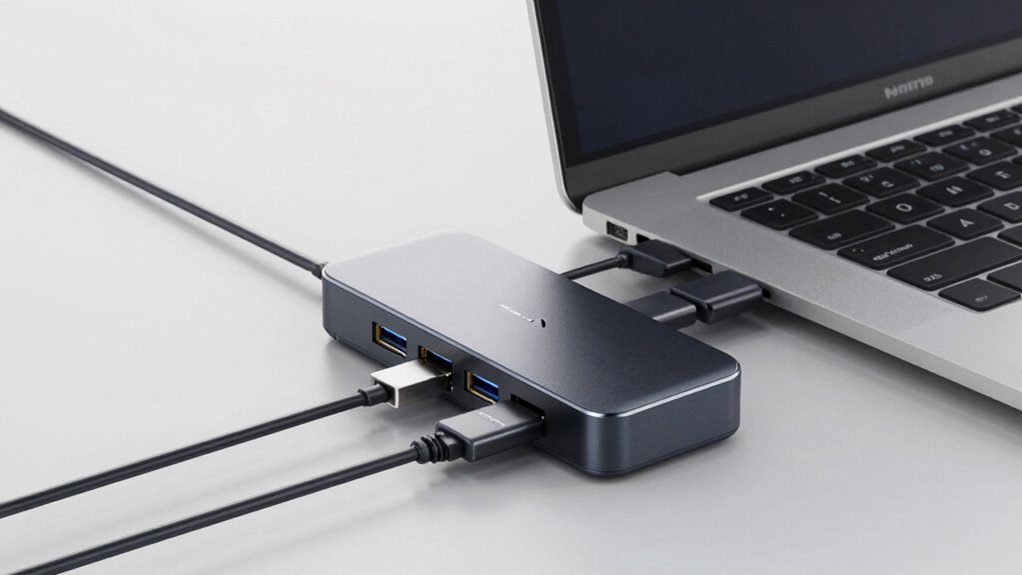

When choosing a USB-C dock, watch out for insufficient power delivery and compatibility issues that can waste your money. Many docks don’t provide the wattage you need, causing slow or no charging, and some ports may not work properly with your device. To avoid these pitfalls, you need to understand the power standards and device requirements. Stick around—you’ll discover how to spot the right dock that saves you money and frustration.
Key Takeaways
- Inadequate power delivery in USB-C docks can prevent proper device charging, wasting money on underperforming products.
- Not all docks support the wattage your device needs, leading to slow or no charging and additional expenses.
- Compatibility issues between docks and devices can cause ports to malfunction or fail to deliver power properly.
- Buying a dock without verifying power standards and device compatibility risks investing in useless or incompatible hardware.
- Understanding power requirements and standards helps avoid purchasing docks that are insufficient or incompatible, saving money.
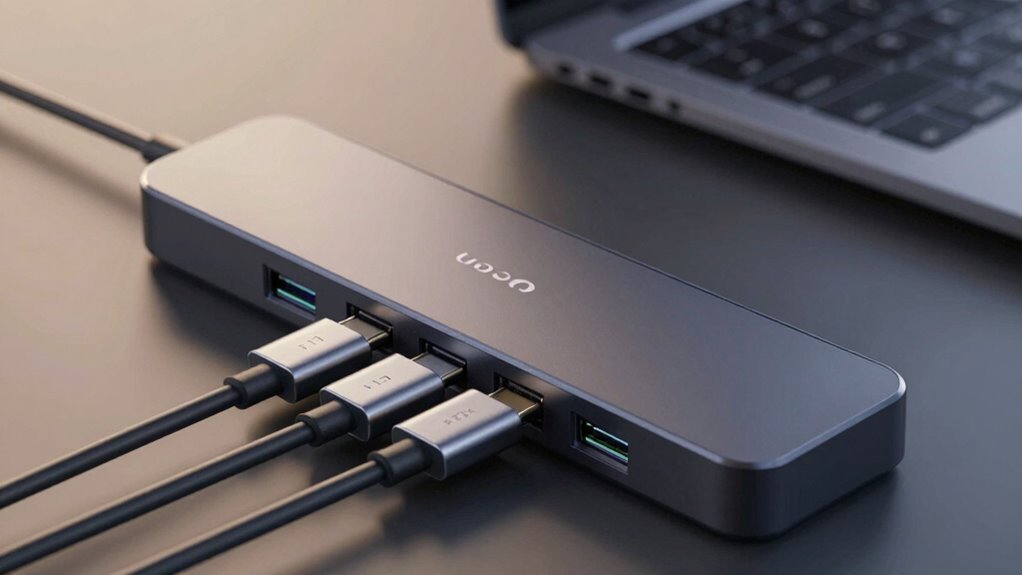
USB-C docks have become indispensable tools for expanding your device’s connectivity in a sleek, convenient way. They let you connect multiple peripherals—like monitors, keyboards, and external drives—without cluttering your workspace. But before you buy, it’s essential to understand the potential pitfalls, especially around power delivery and device compatibility, which can end up wasting your money if overlooked. Power delivery is one of the most critical factors. Many USB-C docks advertise fast charging and high wattage support, but not all deliver what they promise. If you’re relying on a dock to charge your laptop or tablet, you need to make sure it offers sufficient power output. A dock with inadequate power delivery might charge your device slowly or not at all, forcing you to use your device’s original charger separately. This defeats the purpose of a streamlined setup and can lead to frustration. Check the wattage specifications carefully—some docks provide only 30W, which is enough for smaller devices but insufficient for larger laptops. If your device requires 60W or more, settle for a dock that explicitly supports that level of power. Otherwise, you risk buying a product that can’t keep up with your device’s demands, wasting your money on something that’s practically useless for your needs. Additionally, power delivery standards vary between models, so understanding the specific requirements of your device can save you from compatibility issues later. Device compatibility is equally imperative. Not all USB-C docks work seamlessly across all devices. Some are optimized for specific brands or models, such as certain Windows laptops or MacBooks, and may not function properly with others. This mismatch can result in non-functional ports, unstable connections, or inconsistent power delivery. Before purchasing, verify that the dock explicitly states compatibility with your device. Manufacturers often list compatible models or provide compatibility charts—review these carefully. If possible, read user reviews from folks with similar devices to identify any issues they experienced. Investing in a dock that isn’t compatible can lead to headaches, hours of troubleshooting, or even needing to return the product altogether. It’s a waste of your money and time, so do your homework first.
Frequently Asked Questions
Can I Use a USB-C Dock With Any Laptop Model?
You can’t use any USB‑C dock with just any laptop model because of compatibility issues. Check your laptop’s compatibility with the dock, focusing on the ports and power delivery. Not all USB‑C docks are universally compatible, so confirm your device supports the dock’s features. Some docks work across multiple devices, but always verify the dock’s universality and your laptop’s specifications to avoid wasted money.
Do All USB-C Docks Support 4K or Higher Resolutions?
About 80% of USB-C docks support 4K resolution, but not all do. You’ll encounter resolution limitations depending on the dock’s hardware compatibility, especially with older or cheaper models. To get 4K or higher, verify the dock explicitly states support for those resolutions. Check the specifications carefully, because unsupported docks may only deliver 1080p or lower, wasting your money and limiting your display quality.
Is It Necessary to Install Drivers for USB-C Docks?
You usually don’t need to install drivers for USB‑C docks since most offer plug and play compatibility. Modern docks are designed to work seamlessly with your operating system, recognizing the device automatically. However, some advanced features or specific models might require driver installation for peak performance. Always check the manufacturer’s instructions, but in general, plug and play functionality makes setting up your USB‑C dock quick and hassle-free.
Are There Compatibility Issues With Specific Operating Systems?
You might hit a snag if your operating system isn’t on the list of compatible platforms. Driver compatibility varies, and some docks work smoothly on Windows while causing headaches on macOS or Linux. Don’t bite off more than you can chew—check your dock’s OS limitations first. If your system isn’t supported, you’ll need extra drivers or might face functionality issues, so be sure to double-check before buying.
How Do I Determine if a Dock Supplies Enough Power for My Device?
You can determine if a dock supplies enough power by checking its power delivery (PD) rating, which indicates how much wattage it can provide. Make sure it matches or exceeds your device’s charger compatibility requirements. Look for specifications on the dock’s packaging or product page, and compare them to your device’s power needs. This guarantees your device charges efficiently without risking damage or slow charging.
Conclusion
To avoid wasting your wallet on woefully wrong USB-C docks, do diligent research, double-check compatibility, and demand detailed details. Don’t plunge into deals blindly—disappointments can drain your dollars. By being vigilant, you’ll prevent pitfalls and pick the perfect port partner. Prioritize powering, ports, and prices to prevent pointless purchases. Protect your pocket by prioritizing performance over price, and you’ll enjoy a seamless, satisfying setup without sacrificing your savings.