TL;DR

Get the latest gadgets delivered free — and shop member deals
- Fast, free delivery on millions of items
- Access to Prime Big Deal Days deals on October 6–7
- Prime Video, Amazon Music and more included
Smart home security cameras let you check live views, receive activity alerts, and save footage, but features vary by model. Before buying, check power and Wi-Fi reliability, recording costs, storage during outages, detection accuracy, and who can access your video. Good placement and account security matter as much as image quality.
A camera can send a crisp video of your empty porch all night and still miss the one delivery you wanted to see. With smart home security cameras, the useful details live beyond the resolution number: whether the camera stays connected, sends relevant alerts, and saves footage you can actually retrieve.
This guide explains how detection, recording, power, and privacy work together. You’ll get a practical checklist for choosing and placing a camera, plus the tradeoffs to weigh before a low purchase price turns into a monthly bill.
Choose a camera for the view, lighting, power, and connection at its location—not just its resolution.
Check whether useful saved clips, longer retention, or advanced detection require a subscription.
Battery models often favor event recording; wired models may suit continuous recording better.
Limit the camera’s view to the areas you need, and check local rules before recording audio or others.
Use a unique password, multifactor authentication, software updates, and careful sharing controls.
What a smart camera can do for your home
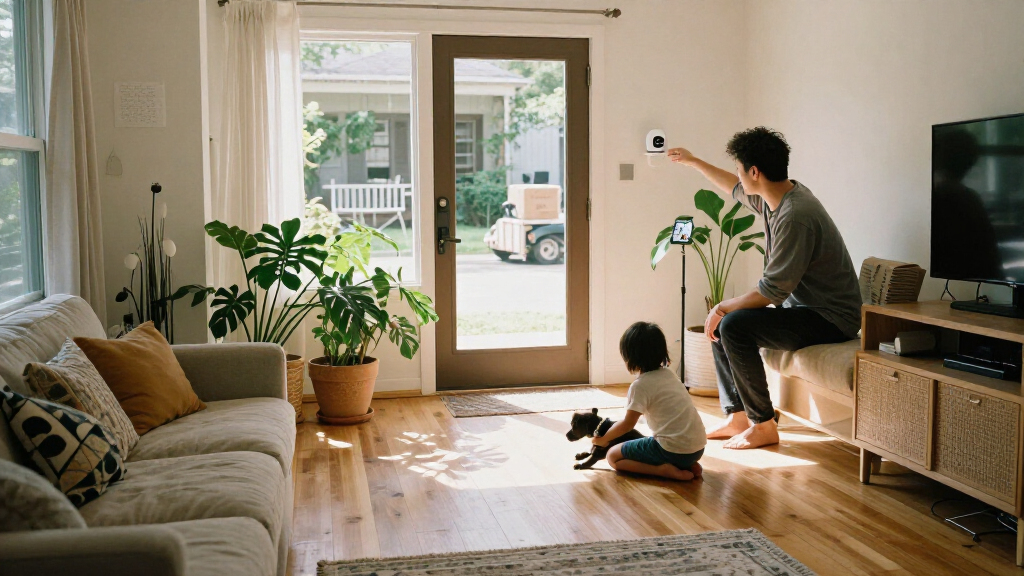
A smart home security camera connects to your network so you can check a live view, receive activity alerts, and review saved clips through an app. Depending on the model, it can watch a room, porch, driveway, or yard and may connect with a doorbell, display, or wider security system. For example, you might check the porch while at work after a delivery alert arrives.
Think of it like a doorbell with a notebook: the camera sees an event, the app taps you on the shoulder, and storage keeps a record. Each step has to work. A strong image means little if the Wi-Fi drops before a clip uploads, and a motion alert is less useful if every swaying branch triggers one. The practical value comes from the whole chain: detection has to recognize the event, the connection has to deliver it, and recording has to preserve it long enough for you to review.
Recent models increasingly offer AI-assisted detection for people, pets, vehicles, and packages, along with activity zones that limit alerts to part of the image. Those tools can make notifications more relevant, but performance depends on placement, lighting, software, and sometimes a paid cloud service. A person-detection alert may save you from checking every passing car, for example, but it can also miss someone partly hidden in shadow. Treat detection as a helpful filter, not a guarantee, and consider how often you would act on the alert before paying extra for it.
Choose features that solve your real problem
The right camera is the one that fits the view, power source, and recording needs you have. A wide field of view may cover a garage door and walkway, while a narrower view can show more detail at a specific entrance. Imagine checking on a dark side gate: night vision, a clear view of the latch, and a reliable alert matter more than a large resolution figure alone. A wider view trades detail at a distance for coverage; a tighter view can make a familiar entrance easier to inspect but may leave blind spots at its edges.
Compare the features that shape everyday use before you buy:
| Feature | What to check | Why it matters |
|---|---|---|
| Image and night vision | Field of view, low-light performance, infrared or spotlight | Lighting and angle affect whether a person or package is recognizable. |
| Detection and alerts | Person, pet, vehicle, or package detection; activity zones | More specific alerts can reduce notifications from passing traffic or leaves. |
| Recording | Cloud plan, memory card, base station, retention period | You need to know whether clips save automatically and when older footage disappears. |
| Power and weather | Wired access, battery life, weather rating, operating temperature | An outdoor camera must cope with local weather, and batteries need recharging. |
| Smart home links | Compatibility with your app, display, voice assistant, or alarm | Basic compatibility may not include every feature across every platform. |
Battery models are easier to mount where there’s no outlet, but many save power by recording events rather than continuously. That can mean less footage to search and fewer recharges, but it also makes detection settings important: an event the camera fails to recognize may never be recorded. Wired cameras suit fixed locations and may support longer or continuous recording, but need an accessible power source. Continuous footage can help when you need to understand what happened before an alert, though it creates more video to store and review. Outdoor and indoor models usually aren’t interchangeable: weather resistance and temperature range matter when winter wind hits the porch.
Avoid paying more than you expected for saved video
Smart home security cameras don’t always need a subscription for basic live viewing, but saved clips, longer history, or advanced detection may require a paid plan. Check the total cost of ownership: purchase price, monthly fees, a hub or memory card, and replacement batteries can add up. A budget camera that requires a plan for every useful recording may cost more over two years than a pricier model with local storage. The right comparison is therefore not just the camera price, but what it costs to keep the specific feature you rely on. If you mainly want to check a live view, a subscription may add little; if you need to retrieve a clip days later, retention and fees matter much more.
Some cameras store footage in the cloud; others support a memory card or a separate base station. Ask how long clips remain available, whether older videos delete automatically, and whether you can view locally stored clips away from home. For instance, a memory card may keep recording through an internet outage, but remote access and alerts can still stop until the connection returns. Local storage can reduce recurring fees and keep recording inside your home, while cloud storage can make off-site viewing and access simpler. The tradeoff is that each option depends on different things: local footage may be lost if the camera or card is taken or damaged, while cloud access depends on the service, connection, and plan terms.
Power and internet outages affect cameras differently. A camera without battery backup generally stops during a power cut, while local recording may continue during an internet outage on some models. If continuous coverage matters, check whether the camera supports backup power and whether its storage remains usable when your router is offline. This distinction matters when deciding what problem a camera can actually solve: a clip stored locally during a network outage may help afterward, but it cannot send you an alert in real time if the connection is down.
Place cameras where they help without invading privacy
Place cameras to cover entrances and shared areas while limiting views into private spaces and neighbors’ homes. A front-door camera aimed at your own steps can show a dropped parcel; one tilted toward a neighbor’s living-room window captures far more than you need. Narrowing the view can reduce unnecessary recording and make the footage easier to interpret. Before recording audio or filming other people, check the rules that apply where you live.
Start with the view you need, then check the live image at different times of day. Glare from a bright window can wash out an indoor picture, while a porch light shining into the lens can make night footage harder to read. These problems can erase the detail you bought a camera to capture, even when its resolution is high. Activity zones may help keep street traffic out of your alerts, though you should not expect software to correct a poor angle; a zone can suppress notifications from part of the image, but it cannot improve what the camera sees.
Installation also depends on Wi-Fi strength. If the feed stutters at the intended spot, test the connection there before drilling holes or mounting a camera high on a wall. A camera that repeatedly disconnects may miss events or leave clips unavailable, so the best mounting point is a balance between useful coverage and a stable signal. A well-placed camera with a stable signal can give you a more useful view than a higher-resolution model that keeps disconnecting.
Secure your account and keep footage under control
Smart home security cameras are internet-connected devices, so no model is risk-free. Use a strong, unique password and turn on multifactor authentication when available; these steps make it harder for someone to enter your account using a password exposed elsewhere. For example, if a family member needs access to the porch feed, use the camera’s sharing controls instead of passing around the account password. Separate accounts also make it easier to remove access later without changing the login for everyone.
Before setup, check where video is stored, who can access it, whether footage is encrypted, and how you can delete clips or revoke shared access. These settings determine how much video remains available and who can see it if household access changes. Review microphone settings too: audio can capture conversations beyond the camera’s field of view. Keep the device and its app updated so you receive available security fixes; updates can address weaknesses that were unknown when you installed the camera.
Compatibility claims deserve a close look as well. A camera may connect to a smart display or voice assistant without supporting every feature there. If you want a spoken alert or a live feed on a screen, confirm that specific function works with the platform you already use. Otherwise, a device can appear to fit your smart home while leaving the action you wanted—such as viewing a saved clip—available only in its own app.
Run this five-step check before you mount a camera
Pick the view. Name the specific place you want to monitor, such as the front step or garage entrance, and frame the camera to avoid private areas. A defined view helps you compare field of view and detection features against a real need.
Check power and weather. Confirm an outlet or plan for battery recharging; for outdoor use, check weather resistance and the operating temperature range. These checks reveal whether the camera can keep working at that location through ordinary weather and between charges.
Test the Wi-Fi. Check the app’s live feed at the mounting spot. A weak connection can lead to missed alerts and delayed clips. Testing there matters because signal quality can drop behind walls or at the edge of your home’s coverage.
Price recording. Compare cloud fees, local storage, hub costs, and video retention. Make sure you know whether live view, alerts, and saved footage each need a plan. This makes the purchase price easier to judge against the cost of keeping footage for the time you need it.
Set access and alerts. Turn on multifactor authentication, choose who can view clips, set activity zones, and test a notification before relying on it. A test checks the full path from detection to your phone and can expose settings that are too sensitive or too quiet.
This quick check catches common surprises before installation. For example, testing Wi-Fi at the porch may reveal you need a different camera location or a network adjustment before the camera can send dependable alerts. It also turns a broad product comparison into a practical question: will this setup reliably capture and preserve the event you care about?
Frequently Asked Questions
Do smart home security cameras work without Wi-Fi?
Most rely on Wi-Fi for remote viewing and alerts. Some can save footage locally during an internet outage, but features vary; remote access may stop until the connection returns.
Do I need a subscription to use a smart camera?
Not always. Some cameras offer live view and basic alerts without a plan, while cloud clips, longer video history, or advanced detection may cost extra. Check the exact storage and alert features before buying.
Can I save camera footage without paying monthly?
Some models support local storage through a memory card or base station. Check how much storage is included, how long recordings last, and whether you can view locally saved clips remotely.
Will my camera keep recording during a power or internet outage?
A camera without battery backup usually stops during a power outage. During an internet outage, some models can keep recording locally, but alerts and remote viewing may be unavailable.
Where should I put a smart home security camera?
Start with entrances, driveways, or shared areas you need to monitor. Aim the view away from private spaces and neighbors’ windows, test Wi-Fi at the mounting spot, and check local rules before recording audio.
Conclusion
Choose your camera around the moment you need it to capture: the parcel at the door, a visitor at the gate, or movement in a shared room. Then check that power, Wi-Fi, storage, and privacy settings support that job.
A camera is only as useful as the clip you can trust when you open the app.
Fall Picks
fall essentials
As an affiliate, we earn on qualifying purchases.