
Whether you keep your laptop lid open or closed depends on your workflow and docking setup. Closing the lid in clamshell mode allows you to use external monitors, keyboards, and mice while conserving power and extending battery life. Opening the lid offers quick access for active work and easy screen adjustments. Power settings, brightness control, and peripheral connections all influence your choice. Continue exploring to discover how to optimize your setup for maximum efficiency.
Listen free for 30 days with Audible
Thousands of audiobooks and originals — cancel anytime.
As an affiliate, we earn on qualifying purchases.
Key Takeaways
- Closing the lid often activates power-saving features, extending battery life during inactivity or external display use.
- Open lid provides immediate access to adjust screen brightness and manage visibility for better workflow.
- Clamshell mode allows working with external peripherals while keeping the lid closed for a tidy workspace.
- Power management and display settings influence energy consumption regardless of lid position.
- Workflow preferences and external monitor setups determine whether to keep the lid open or closed for optimal efficiency.
Deciding whether to keep your laptop lid open or closed depends on how you use your device and what you want to achieve. Your choice can impact battery preservation, screen brightness, and overall efficiency. When your lid is open, you usually have immediate access to your screen and keyboard, which is ideal for active work sessions. But if you’re looking to maximize battery life, keeping the lid closed might be a smarter move, especially if you configure your system to run in a low-power mode or to turn off the display when closed. The reason is that closing your lid often triggers power-saving features that help conserve energy, reducing power drain from the display and background activities.
Screen brightness plays a significant role here. When your lid is open, you can adjust the brightness to suit your environment, but higher brightness levels drain the battery faster. If you’re aiming for longer battery preservation, dimming your screen or setting automatic brightness adjustments can make a noticeable difference. Many laptops automatically adjust screen brightness based on ambient light, which is handy for conserving power without sacrificing visibility. When you close your lid, some systems turn off the display entirely, halting unnecessary power consumption related to screen activity. This simple action can extend your laptop’s battery life, especially during long periods of inactivity. Additionally, understanding power management settings is crucial for optimizing your device’s energy efficiency whether the lid is open or closed. Adjusting these settings to suit your usage can further enhance energy efficiency.
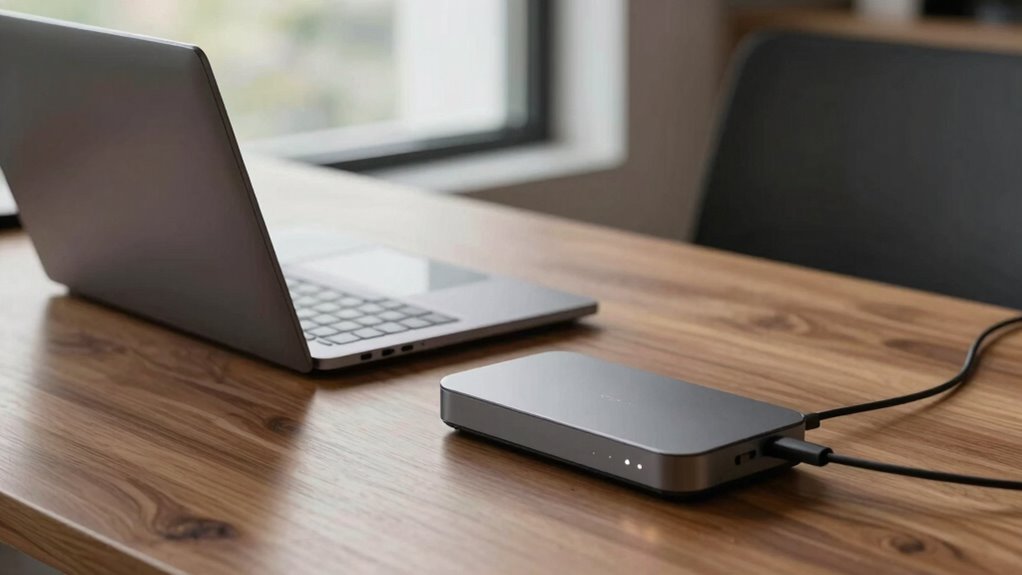
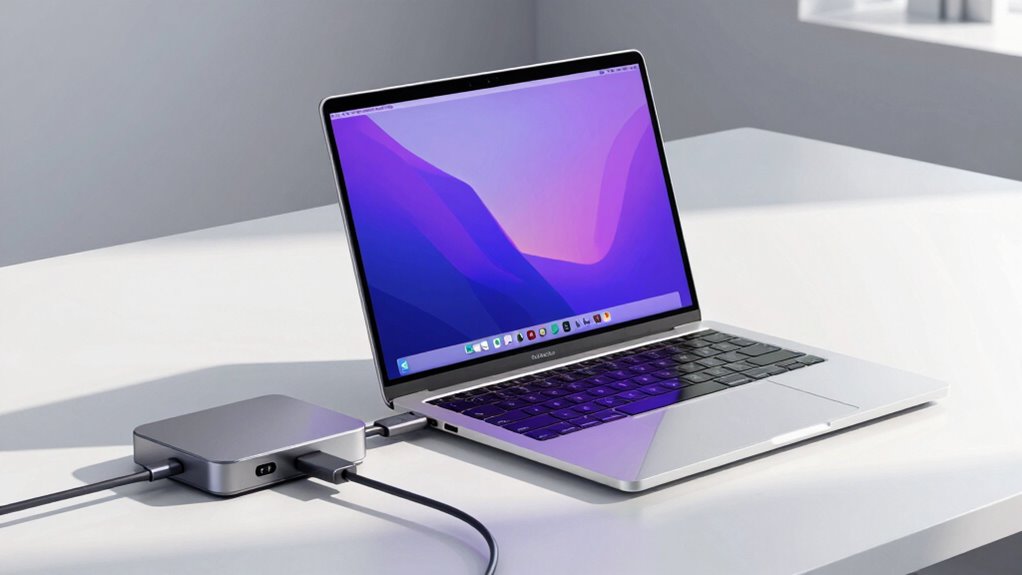
Your docking setup also influences this decision. If you connect your laptop to an external monitor, keyboard, and mouse, you might prefer closing the lid to keep your workspace tidy and to prevent accidental inputs. Using your laptop in clamshell mode, with the lid closed but connected to external peripherals, allows you to work comfortably without sacrificing battery life or risking overheating from the built-in display. In this setup, the laptop continues to run in the background, but the power management settings determine how much energy is used. Proper configuration can keep your device energy-efficient whether the lid is open or closed, especially when considering external display options and how they affect your workflow. Moreover, being aware of system settings helps in customizing your usage preferences to balance performance and power conservation.
In the end, the choice hinges on your workflow and priorities. If you need quick access and frequent interaction, keeping the lid open makes sense, but be mindful of screen brightness settings to save power. If your goal is to extend battery life during prolonged periods of inactivity or when connected to an external display, closing the lid and adjusting your power settings can help you get the most out of your device. Tailoring your approach based on your usage ensures that you optimize battery preservation, screen brightness, and overall efficiency, making your laptop setup work best for your needs.
laptop docking station with external monitor
As an affiliate, we earn on qualifying purchases.
As an affiliate, we earn on qualifying purchases.
Frequently Asked Questions
Does Closing the Lid Improve Battery Life?
Closing your laptop lid can improve power management, helping conserve battery life when you’re not actively using it. It reduces unnecessary hardware activity, which can also extend hardware longevity over time. However, make sure your settings are configured correctly so the laptop doesn’t go into full sleep or shutdown mode unexpectedly. Overall, closing the lid is a simple way to optimize battery performance and maintain your device’s health, especially during prolonged periods of inactivity.
Can I Use an External Monitor With the Lid Closed?
Yes, you can use an external monitor with the lid closed. Just guarantee your laptop has proper ventilation, as keeping the lid shut might restrict airflow and cause overheating. This setup improves screen visibility on your external monitor while maintaining a clean workspace. Be mindful of ventilation to prevent thermal issues, and adjust power settings to keep your laptop running efficiently with the lid closed.
Will Closing the Lid Affect Wi-Fi or Bluetooth Connections?
Closing your laptop lid doesn’t necessarily ruin your Wi-Fi or Bluetooth connections, but it can trigger privacy concerns and heat issues. As you shield your device, you may restrict airflow, causing heat to build up and potentially disrupt signals. Maintaining proper heat management helps keep connections stable, while being mindful of privacy concerns means considering your environment. So, if you close your lid, monitor your device’s temperature and connection quality to stay secure and efficient.
What Are the Risks of Keeping the Lid Closed Long-Term?
Keeping your lid closed long-term can impact lid durability and ventilation. Over time, frequent closing might weaken the hinge, reducing its lifespan. Additionally, if your laptop doesn’t have proper ventilation when closed, heat can build up, risking internal damage. To avoid these issues, make sure your laptop has adequate cooling and occasionally open the lid to let heat dissipate, preserving both the lid’s integrity and overall performance.
How Does Lid Position Impact Docking Station Performance?
Lid position subtly influences your docking station’s performance. When your lid stays open, it promotes better thermal management, preventing overheating and maintaining smooth operation. Additionally, an open lid can boost power efficiency by allowing heat dissipation, which in turn reduces energy strain on your system. Conversely, closing the lid may cause slight thermal buildup, potentially impacting performance over time. Keep your lid open for ideal thermal flow and sustained efficiency.
Conclusion
Whether your laptop lid is open or closed, the key lies in the subtle details of your docking setup. Picture your workspace as a finely tuned orchestra, where each instrument—your device, dock, and settings—must harmonize seamlessly. When you perfect these nuances, your workflow flows effortlessly, like a gentle stream carving through a tranquil landscape. In this symphony of productivity, paying attention to the small details ensures your tech performs at its best, every time.
NFL season / tailgating Picks
team gear
As an affiliate, we earn on qualifying purchases.