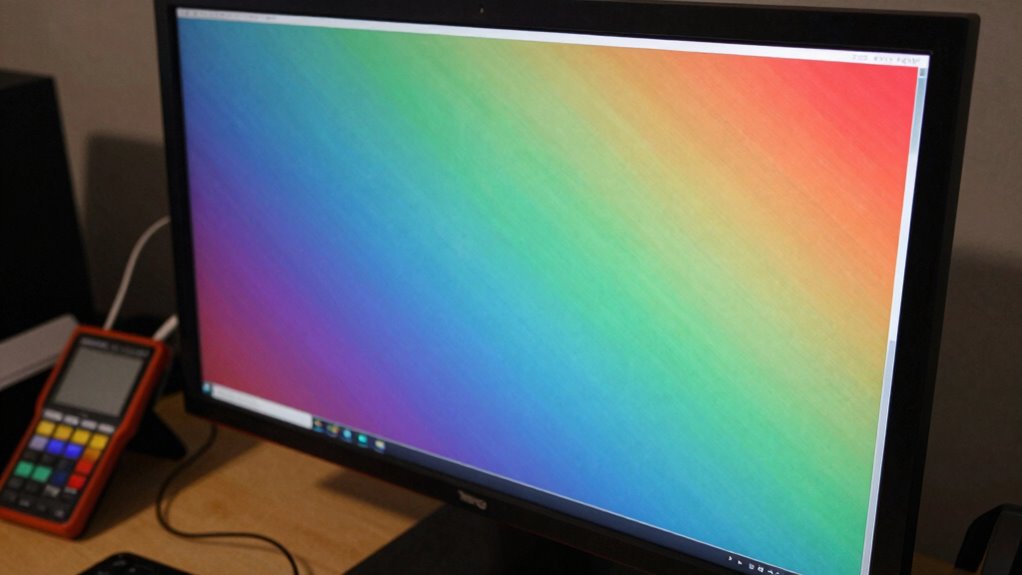

Even the best HDR screens often don’t show their full potential straight out of the box because default settings usually aren’t calibrated for maximum color accuracy, contrast, or brightness. This can make images look washed out, overly saturated, or lack depth. Proper calibration adjusts these settings, balancing shadows and highlights and ensuring colors are true to life. If you want to reveal your display’s true power, keep exploring how to fine-tune your setup.

Get the latest gadgets delivered free — and shop member deals
- Fast, free delivery on millions of items
- Access to Prime Big Deal Days deals on October 6–7
- Prime Video, Amazon Music and more included
Key Takeaways
- Default settings often don’t match the display’s true capabilities, leading to washed-out or overly saturated images.
- Out-of-the-box calibration prioritizes factory presets, which may not optimize contrast, color accuracy, or brightness for your environment.
- Proper calibration reveals the display’s full potential, enhancing color fidelity, contrast, and overall picture quality.
- Brightness and contrast adjustments are essential for balancing deep blacks and vibrant highlights in HDR content.
- Using calibration tools or professional services ensures precise adjustments for a more realistic and immersive viewing experience.
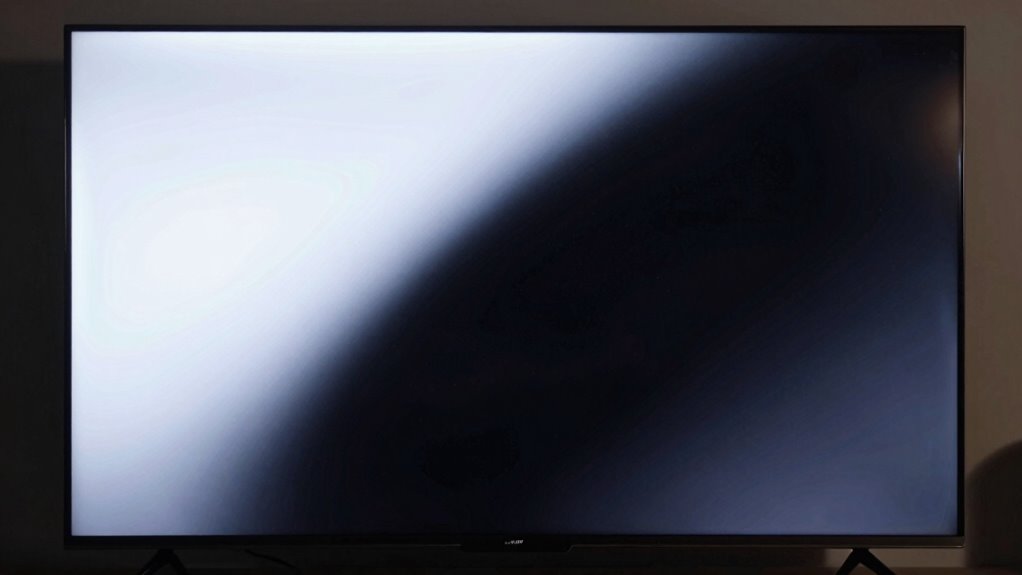
Have you ever wondered why some HDR displays look more vibrant and realistic than others? The answer often comes down to calibration. Out of the box, many HDR screens are set with default settings that don’t showcase their true potential. They might look bright, but they often lack the color accuracy needed to produce authentic images. When a display isn’t properly calibrated, the colors can appear washed out or overly saturated, and the contrast may not be optimized for your viewing environment. This is why simply turning on your new HDR TV or monitor isn’t enough—you need to fine-tune its settings to truly unlock its capabilities.
One of the most critical aspects of HDR calibration is adjusting the brightness settings. Brightness controls how well your display can reproduce the darkest and lightest parts of an image. If it’s set too high, black areas can look gray, destroying the depth and realism of the picture. Conversely, if it’s too low, bright scenes lose their impact, and highlights become dull. Proper brightness calibration guarantees that shadows retain detail without washing out the highlights. This balance is crucial for HDR content, which relies on a broad luminance range to deliver a more immersive experience. When you tweak these settings correctly, your screen can produce deep blacks and vibrant highlights that feel more lifelike. Additionally, understanding HDR calibration basics is essential for achieving optimal picture quality. Knowing how display settings influence overall picture fidelity helps in making precise adjustments. Properly calibrated displays also help avoid color distortions that can detract from the viewing experience.
Proper brightness calibration ensures deep blacks and vibrant highlights, making HDR content more immersive and lifelike.
Achieving accurate color accuracy is fundamental to a truly lifelike picture, and calibration plays a vital role in this. Many HDR displays come with preset modes that may look good initially but don’t reflect accurate colors. To get the most out of your screen, you need to calibrate it so that reds, greens, and blues are rendered precisely. Accurate color reproduction makes images look more natural and prevents hues from appearing oversaturated or dull. This process often involves using calibration tools or professional calibration services, but even manual adjustments via your display’s settings can substantially improve color fidelity.
When you invest time in adjusting brightness and color accuracy, you’re guaranteeing that your HDR content looks its best. It transforms your viewing experience from a generic, often disappointing display into a vibrant, realistic window into the content creators’ vision. Out of the box, your display might seem impressive, but calibration unlocks its full potential, making every scene more detailed, more colorful, and more engaging. So, don’t settle for default settings—take the time to calibrate your HDR display properly, and you’ll notice the difference every time you watch.
As an affiliate, we earn on qualifying purchases.
Frequently Asked Questions
How Often Should I Recalibrate My HDR Display?
You should recalibrate your HDR display every few months to maintain ideal color accuracy. As your display technology ages, its color performance can shift, affecting image quality. Regular calibration helps guarantee your screen continues to deliver vibrant, accurate colors. If you notice colors look off or contrast isn’t what it used to be, it’s time for another calibration. Routine recalibration keeps your HDR experience consistently stunning and true to the original content.
Can I Calibrate HDR Without Professional Tools?
You can definitely calibrate your HDR display without professional tools, but it’s like trying to hit a moving target. Start by adjusting display settings manually for brightness, contrast, and gamma. Use free calibration tools or software to help guide you, but remember, they’re not as precise as professional tools. Take your time, tweak settings gradually, and keep your expectations realistic for the best results.
What Are Common Mistakes During HDR Calibration?
A common mistake during HDR calibration is neglecting color accuracy, leading to overly saturated or dull images. You might also overlook brightness consistency, causing parts of the screen to appear washed out or too dim. Avoid these errors by carefully adjusting settings and using test patterns. Proper calibration guarantees your HDR content displays with true colors and consistent brightness, giving you a more immersive and accurate viewing experience.
Does Calibration Improve HDR Gaming Performance?
Yes, calibration can greatly improve your HDR gaming performance. By fine-tuning HDR color and display uniformity, you get more accurate colors and consistent brightness across the screen. This means scenes look more realistic and vibrant, enhancing immersion. Proper calibration minimizes issues like blooming or color inconsistencies, making your gaming experience more enjoyable and visually stunning. It’s an essential step to reveal your display’s full potential.
Are There Automatic Calibration Options for HDR Screens?
Imagine your HDR screen is a diva demanding perfection—luckily, auto calibration exists to soothe its ego. Yes, many HDR screens now feature auto calibration options, saving you from fiddling endlessly. These tools analyze factory settings and adjust brightness, contrast, and color automatically, bringing your display closer to its true potential. Instead of manual tweaks, you get a more accurate picture right out of the box, making your gaming and viewing experience vastly better.
Conclusion
So, next time you marvel at a stunning HDR display, remember it’s just the beginning. Out-of-the-box settings are like a blank canvas—you need to calibrate to reveal its true potential. It’s funny how the same screen, with just a few tweaks, can transform your viewing experience. The coincidence? Great visuals often depend on your effort behind the scenes. Embrace calibration, and you’ll see your screen’s full brilliance—hidden just beneath the surface.
Fall Picks
fall essentials
As an affiliate, we earn on qualifying purchases.