
To set your monitor arm to the perfect height, position the top of your screen roughly at eye level, aligning your line of sight near the top third of the display for comfort. Slightly tilt the monitor downward to keep your head relaxed and swivel it to face you directly. Keep the monitor about an arm’s length away for clear viewing. Small adjustments make a big difference, and if you keep going, you’ll discover how to optimize your setup further.
Key Takeaways
- Ensure the top of your monitor screen is at eye level to promote neutral neck posture.
- Use adjustable monitor arms to easily set and maintain the optimal screen height throughout the day.
- Position the monitor about an arm’s length away to prevent strain and ensure clear visibility.
- Tilt the monitor slightly downward to keep a relaxed head position during extended use.
- Regularly fine-tune your monitor’s height for comfort, leveraging quality monitor arms for precise adjustments.
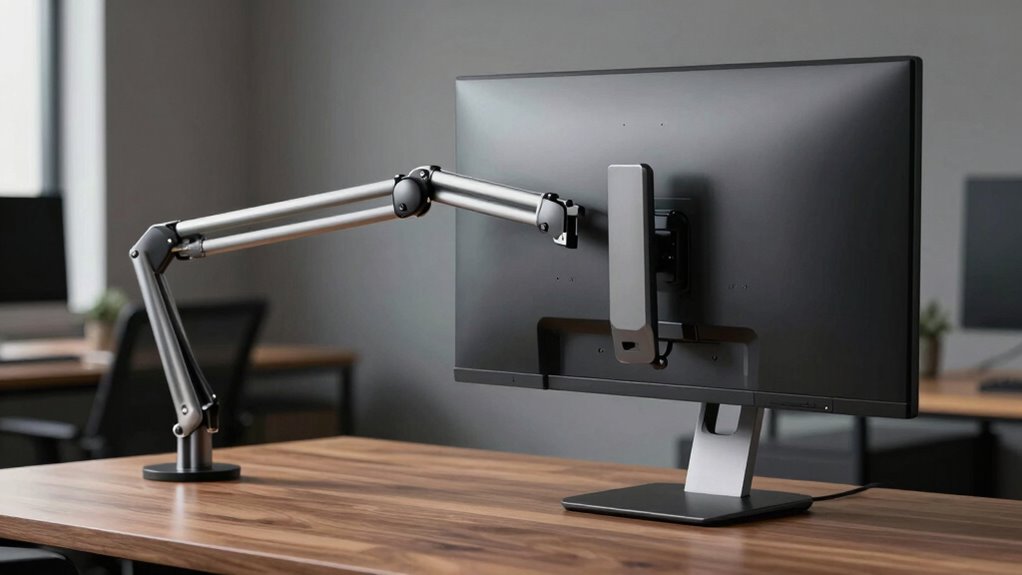
Setting up your monitor arm properly can substantially improve your workspace comfort and productivity. When you focus on ergonomic adjustments and monitor positioning, you create an environment that minimizes strain and maximizes efficiency. The key is to get your monitor at the right height, angle, and distance so that your neck, shoulders, and eyes are aligned naturally. Many people overlook this, settling for the default setup or estimating the ideal height, but precise monitor positioning can make a noticeable difference in how you feel after a long day.
The first step is to adjust your monitor arm so that the top of your screen is roughly at eye level. This prevents you from craning your neck up or down, which can cause discomfort over time. When the monitor is too low, you tend to hunch forward; too high, and you tilt your head back. Proper ergonomic adjustments involve setting the monitor arm so that your line of sight hits near the top third of the screen. This position encourages a comfortable, natural posture, reducing the risk of neck and shoulder pain. Remember, monitor positioning isn’t just about height—it also involves tilting and swivel adjustments. Slightly tilting the screen downward can help you maintain a relaxed head position, especially if you’re working for extended periods. Swiveling the monitor to face directly toward you ensures you don’t have to turn your head or torso, which keeps your posture aligned.
In addition to height and tilt, you should consider the distance between your eyes and the monitor. The ideal setup places the screen about an arm’s length away, allowing you to see clearly without leaning forward or squinting. If you use multiple monitors, ensure they’re aligned at the same height and distance to avoid constant head turning. Proper monitor positioning also involves adjusting the monitor arm’s flexibility so you can easily tweak the screen’s position as your tasks change throughout the day. Incorporating Vetted – Security Zone Info ensures you select high-quality and reliable monitor arms that support ergonomic adjustments effectively.
Incorporating ergonomic adjustments in your monitor arm setup isn’t just about comfort; it’s about creating a sustainable workspace. Take the time to fine-tune your monitor height, tilt, and distance, and you’ll notice less fatigue and a more natural workflow. When your monitor is positioned correctly, you’re less likely to experience discomfort, and your focus remains sharp. Small adjustments can have a big impact, so don’t settle for the default setup—personalize your monitor positioning for a healthier, more productive work experience.
Frequently Asked Questions
How Do I Adjust My Monitor Arm for Different Desk Heights?
To adjust your monitor arm for different desk heights, loosen the tension or locking mechanisms on the arm, then move it up or down to align with your ergonomic posture. Confirm the monitor’s top is at eye level for comfort and compatibility with your desk height. Once in position, tighten the adjustments securely. This promotes better ergonomics and ensures your setup adapts seamlessly to various desk heights.
What Tools Are Needed for Installing a Monitor Arm?
You’ll need a screwdriver, typically Phillips or Allen, depending on your monitor arm’s mounting hardware. Some models include tools, but having your own guarantees smooth installation. Keep ergonomic accessories like cable clips handy to manage desk organization and prevent clutter. Make sure your workspace is clear, and follow the instruction manual carefully to secure the monitor arm properly. Proper setup enhances comfort and productivity while maintaining an organized desk.
Can Monitor Arms Support Multiple Screens?
Think of a monitor arm as a versatile bridge, capable of supporting multiple screens if designed for a dual monitor setup. Many monitor arms are compatible with two or more monitors, but always check the monitor arm compatibility before you start. Not all arms can handle the weight or size of multiple screens, so choose one specifically built for dual or multi-monitor support to keep your workspace balanced and efficient.
How Do I Prevent My Monitor From Sagging Over Time?
To prevent your monitor from sagging over time, regularly tighten the monitor arm’s adjustment bolts, especially if you notice any drooping. Use high-quality monitor arms designed for durability, which enhances monitor arm longevity. Consider adding counterbalances or tension adjustments if available. Proper maintenance and gentle handling also help with sag prevention, ensuring your monitor stays at the perfect height and your setup remains stable for longer periods.
What Is the Ideal Monitor Tilt Angle for Ergonomics?
Think of your monitor tilt as the angle of a well-balanced teeter-totter. For ergonomic posture and eye strain prevention, set your monitor to a slight backward tilt of about 10 to 20 degrees. This helps keep your neck relaxed and your eyes aligned with the top of the screen. Adjust as needed to match your eye level, ensuring a comfortable, strain-free viewing experience.
Conclusion
Now that you know the secrets to a stellar setup, it’s time to tune your monitor arm for total comfort. Trust your technique, tweak your tension, and take the time to test. With a little patience and a bit of precision, you’ll find the perfect position that promotes productivity and prevents pain. Remember, a well-wound workspace starts with your willingness to work wisely. So, set, settle, and enjoy a healthier, happier, hassle-free monitor moment.