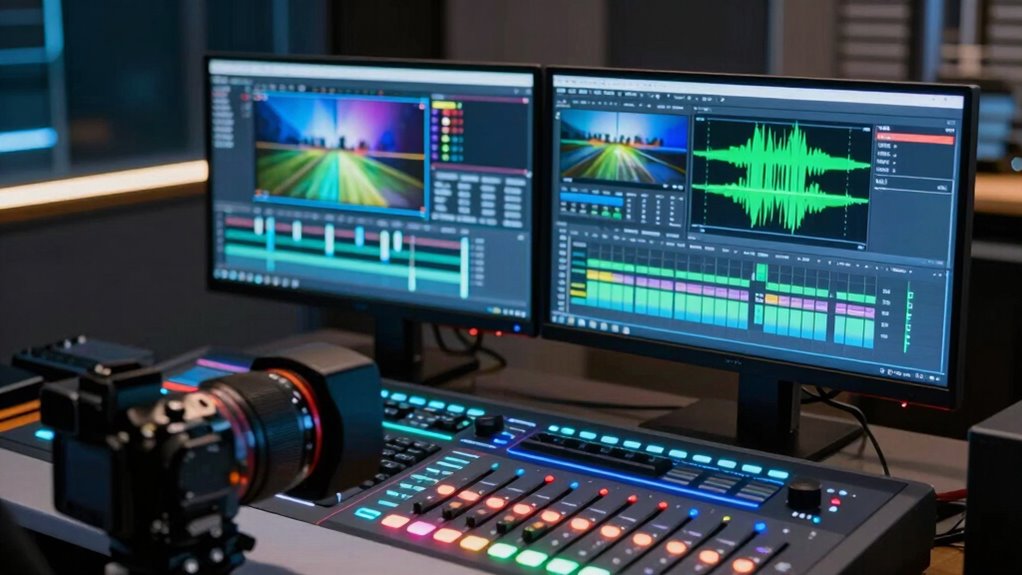

To stop exporting blurry videos, you need to choose the right codecs, bitrate, and presets. Use efficient codecs like H.264 or H.265, and set an appropriate bitrate—too low causes pixelation, too high increases file size without quality gains. Select presets that prioritize quality, and match your export resolution to your original footage. Improving these settings helps maintain sharpness, and exploring the details behind these options will help you produce clearer videos every time.
Key Takeaways
- Use efficient codecs like H.264 or H.265 to maintain sharpness while compressing videos effectively.
- Set an appropriate bitrate—avoid too low to prevent artifacts and too high to keep file size manageable.
- Match export resolution to the original footage to prevent blurriness caused by unnecessary downscaling or upscaling.
- Choose high-quality presets and adjust custom settings to prioritize detail preservation during export.
- Test different configurations to find the optimal balance between quality and file size, reducing blurry or pixelated results.

If you’re tired of ending up with blurry videos after exporting, it’s time to change your approach. One of the biggest culprits behind poor video quality is how your footage gets compressed during the export process. Compression artifacts, those ugly blocky or muddy spots that appear when a video is overly compressed, can ruin even the most well-shot footage. To avoid this, you need to understand how compression works and how it impacts your video’s clarity. Choosing the right codec and bitrate plays a vital role here. A more efficient codec like H.264 or H.265 reduces file size while maintaining quality, but only if you set the correct parameters. If you set the bitrate too low, you’ll get compression artifacts and a loss of detail, making your video look pixelated or blurry. Conversely, setting it too high results in unnecessarily large files, which isn’t practical. Find a balance that preserves quality without creating huge files. Additionally, understanding the impact of codecs and presets** can help you optimize your export settings for the best results. Another common issue that affects video sharpness is resolution scaling. Resolution scaling occurs when you export your video at a lower resolution than the original footage. It’s tempting to reduce resolution to save space or meet specific upload requirements, but doing so can cause your video to look blurry or pixelated, especially if you scale down excessively. Always match your export resolution to your original footage or choose a resolution that maintains the quality you need. If you want to upscale footage, be aware that it can introduce blurriness because you’re essentially stretching pixels, which can result in a softer appearance. To avoid this, use high-quality scaling algorithms or consider exporting at a higher resolution if your platform supports it. Choosing the right preset is equally important. Many editing programs offer presets optimized for different platforms and quality levels. Using a high-quality preset ensures that your encoding process prioritizes preserving details, which reduces the likelihood of compression artifacts and resolution issues. If you’re unsure, opt for custom settings: increase your bitrate, select a modern codec, and match your resolution to your source footage. Don’t overlook the importance of previewing your export settings with short test clips to see how different configurations impact quality. Properly balancing these parameters**—codec choice, bitrate, resolution, and presets—can dramatically improve your exported videos’ sharpness and clarity, keeping them from appearing blurry or pixelated.

Nero Video Maker | Video Editing Software | Create & Edit Videos & Slideshows | 8K, 4K, Full HD | AI-Powered | Lifetime License | 1 PC | Windows 11/10/8/7
✔️ Create, Edit & Export Videos & Slideshows: Effortlessly create, edit, and export high-quality videos in HD, 4K,…
As an affiliate, we earn on qualifying purchases.
As an affiliate, we earn on qualifying purchases.
Frequently Asked Questions
How Does Resolution Impact Video Clarity?
Your video clarity is directly affected by resolution, which determines pixel density and display resolution. Higher resolution means more pixels, resulting in sharper images and better detail. When you increase resolution, your video appears clearer because there’s more information for the display to render. Conversely, lower resolution reduces pixel density, making your video look blurry or pixelated. So, to improve clarity, always aim for higher display resolution suited to your project.
What Are the Best Codecs for High-Quality Exports?
You should choose codecs like H.264 and H.265 for high-quality exports because they balance compression with clarity, preserving details vital for color grading and audio synchronization. H.264 offers widespread compatibility, while H.265 provides better compression for similar quality. Both codecs support high resolutions and bitrates, ensuring your videos stay sharp and true to your editing intentions. Opt for these codecs to maintain visual fidelity and seamless audio integration in your final export.
How Do I Choose the Right Bitrate for My Project?
You should choose a bitrate high enough to prevent compression artifacts, especially if your project involves detailed visuals or color grading. A higher bitrate maintains quality but increases file size. For smooth, professional results, start with a bitrate that matches your codec’s recommended settings, then adjust based on your video’s complexity. This balance ensures your footage remains sharp, vibrant, and free of blurry sections.
Can Presets Improve Video Quality Without Increasing File Size?
Yes, presets can improve your video quality without increasing file size, especially if they optimize encoding settings for clarity and color grading. Using presets tailored for your project helps maintain sharpness and accurate colors while keeping file sizes manageable. Plus, they guarantee better audio syncing and overall consistency. Just choose presets designed for your desired output quality, and you’ll notice clearer videos without the need for higher bitrates or larger files.
What Common Mistakes Cause Blurry Video Exports?
You’re shooting yourself in the foot if you don’t pay attention to compression artifacts and color grading during export. Common mistakes include using too low a bitrate, which causes blurriness, or over-sharpening in post-production, making compression artifacts more visible. Also, exporting with incompatible presets can distort details. To avoid this, balance your settings carefully, and always preview your video before finalizing to catch issues early.
video editing codec presets
As an affiliate, we earn on qualifying purchases.
As an affiliate, we earn on qualifying purchases.
Conclusion
Now that you understand codecs, bitrates, and presets, you’re equipped to avoid blurry exports. Think of it like sharpening a photo—you can’t just click save and expect clarity. Precision matters in video too. By choosing the right settings, you turn a blurry mess into a crisp masterpiece. It’s not just about pixels; it’s about your story’s impact. So, don’t settle for less—craft videos that look as sharp as your vision.

AIVO-70A8KM 7" H.265 Tester for CCTV Installation and Troubleshooting
7-Inch Display: Features 7-inch screen for clear viewing during CCTV camera installation, configuration, and troubleshooting tasks
As an affiliate, we earn on qualifying purchases.
As an affiliate, we earn on qualifying purchases.
video bitrate analyzer
As an affiliate, we earn on qualifying purchases.
As an affiliate, we earn on qualifying purchases.