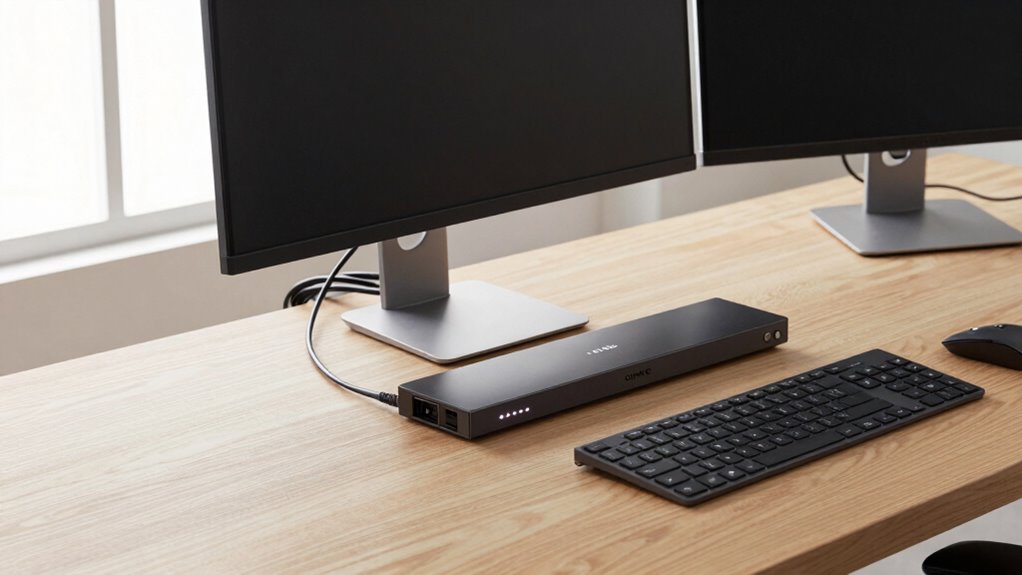

A KVM switch helps you manage two or more computers using just one keyboard, monitor, and mouse, keeping your desk tidy and clutter-free. It allows quick toggling between devices, making your workflow smoother. Many models support remote access, so you can control your computers from anywhere. Compatibility with different operating systems and peripherals guarantees versatility. Keep exploring to discover how a KVM switch can streamline your setup and boost your efficiency even further.
Key Takeaways
- KVM switches allow controlling two computers with one set of keyboard, monitor, and mouse, reducing desk clutter.
- They enable seamless toggling between devices, streamlining workflow and device management.
- Many models support remote access, allowing control of connected devices from a distance.
- Compatibility with various operating systems and peripherals ensures versatile setup options.
- Additional features like hotkey switching and multi-monitor support enhance usability and efficiency.
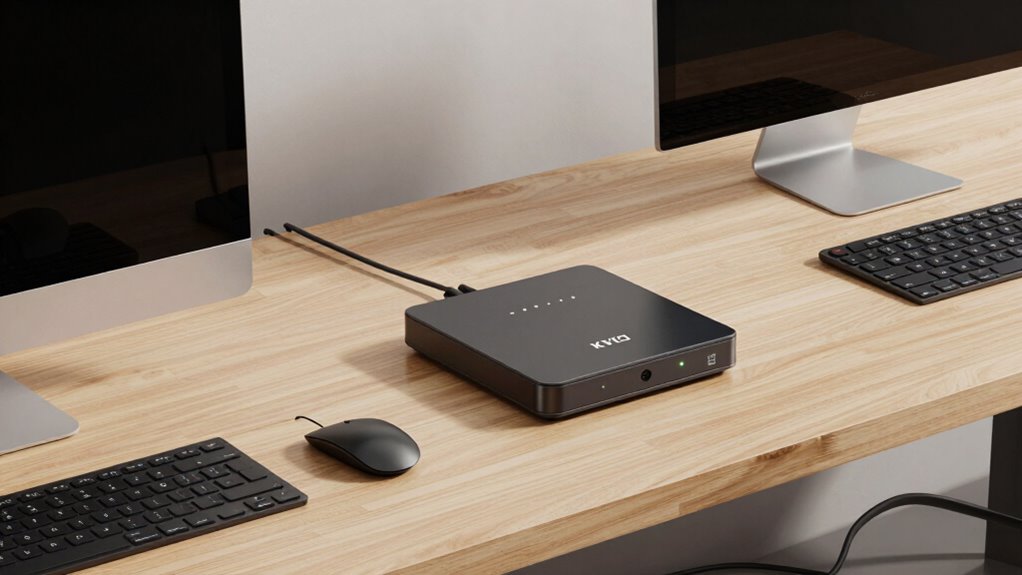
Have you ever wanted to control multiple computers with a single keyboard, monitor, and mouse? If so, a KVM switch might be just what you need. These devices allow you to seamlessly toggle between two or more computers, making your workspace more efficient and less cluttered. Instead of cluttering your desk with multiple sets of peripherals, a KVM switch consolidates control, saving space and reducing cable mess. Whether you’re working with a desktop and a laptop or managing servers and personal computers, KVM switches streamline your workflow.
Control multiple computers effortlessly with a single keyboard, monitor, and mouse using a KVM switch.
One of the biggest advantages of a KVM switch is its support for remote access. Many models enable you to control connected devices from a distance, which is especially useful in server environments or when you need to troubleshoot systems remotely. This means you don’t have to physically switch cables or be directly in front of each device. Instead, you can manage everything from your primary workstation or even remotely via network connections, depending on the model. This remote access capability enhances flexibility and productivity, allowing you to work more efficiently without constantly moving around or disconnecting and reconnecting hardware.
Device compatibility is another vital factor to consider when choosing a KVM switch. Modern KVM switches are designed to support a wide variety of devices, including different operating systems, display types, and peripheral connections. Whether your computers run Windows, macOS, Linux, or other OS, you want a switch that can accommodate them without hassle. Additionally, compatibility with various monitor resolutions, USB peripherals, and audio devices ensures you won’t encounter issues when switching between computers. The best KVM switches are versatile enough to handle different device configurations, so you can set up your workspace without worrying about compatibility problems.
In addition to supporting multiple devices, many KVM switches also offer features like hotkey switching, which lets you toggle between computers quickly using keyboard shortcuts. Others include built-in cables or support for multiple monitor setups, further enhancing usability. A good KVM switch seamlessly integrates into your existing setup, making switching effortless and intuitive. As you consider your options, pay attention to device compatibility and remote access features, as these will greatly impact how smoothly you can operate your multiple systems.
Ultimately, a KVM switch is a smart investment if you want a clean, organized desk and efficient control over multiple computers. It simplifies your workspace, reduces cable clutter, and provides remote access capabilities, all while guaranteeing compatibility with various devices. Additionally, understanding how high refresh rates impact your setup can help you optimize performance for specific tasks like gaming or professional work. With the right model, you’ll enjoy faster switching, better organization, and a more streamlined workflow—making your tech setup more powerful and less cluttered.
Frequently Asked Questions
Can KVM Switches Support Audio and USB Peripherals?
Yes, many KVM switches support audio and USB peripherals, making your setup more streamlined. You can easily switch audio support along with your keyboard and mouse, ensuring seamless audio sharing between computers. Look for models that explicitly mention audio support and USB peripheral compatibility, so you can connect external drives, printers, or headsets without hassle. This way, you maintain a clean, organized workspace while effortlessly managing multiple devices.
What Is the Maximum Resolution Supported by KVM Switches?
Imagine you’re editing high-resolution photos on your dual-monitor setup. Most KVM switches support up to 4K resolution at 60Hz, guaranteeing sharp visuals. The maximum resolution depends on device compatibility and resolution limits of the switch itself. Higher-end models can even support 8K displays, but always check your KVM switch’s specifications to make sure your devices work seamlessly without sacrificing image quality or performance.
Are KVM Switches Compatible With Gaming Setups?
Yes, many KVM switches are compatible with gaming setups, but you need to verify for gaming compatibility and support for high refresh rates. Look for switches that handle fast response times and support high resolutions to ensure smooth gameplay. Some models are optimized for gaming, offering minimal input lag and stable connections. Always verify the switch’s specifications to match your monitor’s refresh rate and your gaming performance needs.
How Do KVM Switches Handle Cable Management?
A KVM switch is like a magic wand for cable management. It handles cable routing neatly, reducing clutter dramatically, so your desk stays sleek and organized. You connect your monitors, keyboards, and mice to the switch, which then links to your computers via minimal cables. This setup simplifies switching between devices, keeps cables tidy, and makes your workspace look professional and clutter-free, like a well-orchestrated symphony of technology.
Do KVM Switches Require Software Installation or Drivers?
You don’t need to install software or drivers for most KVM switches, making setup straightforward. They are typically hardware-compatible with a wide range of systems, ensuring easy integration. Installation complexity is minimal; you just connect your computers and peripherals via cables. Once connected, the switch automatically recognizes your devices, allowing you to toggle between computers effortlessly. This simplicity makes KVM switches an excellent choice for maintaining a clean, organized workspace.
Conclusion
Now that you know how a KVM switch works, you can streamline your workspace like a modern-day Leonardo da Vinci organizing his studio. No more cluttered desks or juggling multiple keyboards and mice—just a simple switch to control two computers seamlessly. Think of it as having your own magic wand to conjure order out of chaos, bringing you closer to that sleek, efficient setup of your dreams. Embrace this tech upgrade and make your desk a true masterpiece.