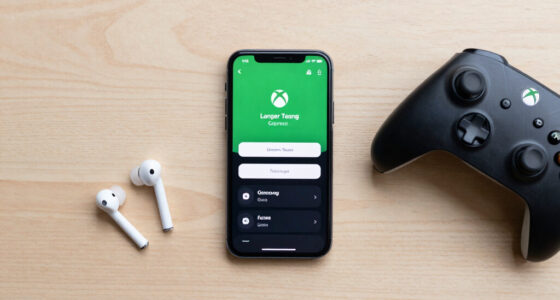
Use this guide to choose a smart home device bundle, connect its devices, and confirm they work together. It is for beginners setting up a small system such as a hub, smart bulbs, plugs, sensors, or a doorbell. Plan on 1–3 hours, depending on the number of devices and whether you need to update your Wi-Fi or apps.

Get the latest gadgets delivered free with Prime
- Fast, free delivery on millions of items
- Prime Video, Amazon Music and more included
- Member-only deals all year

Smart Home Starter Kit with Echo Hub, Smart Plug, and 4 Smart Bulbs
- ✔ Included items: Echo Hub, Amazon Smart Plug, 4 Amazon Basics Smart Bulbs
- ✔ Display: 8-inch touchscreen, 1280 × 800
- ✔ Connectivity: Dual-band Wi-Fi, Bluetooth, Zigbee, Thread, Matter
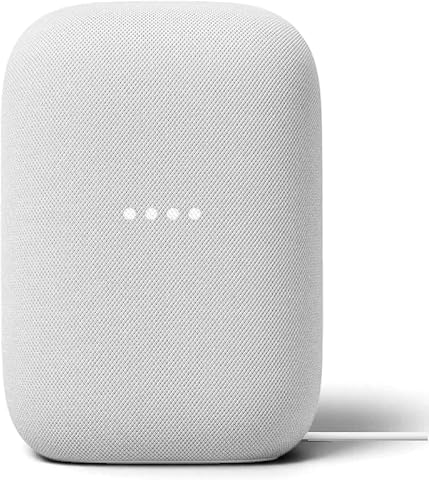
Google Nest Audio Smart Speakers, 3-Pack
- ✔ Quantity: 3 speakers
- ✔ Connectivity: Wi-Fi, Bluetooth 5.0
- ✔ Audio drivers: 75 mm woofer and 19 mm tweeter per speaker

Ring Alarm 14-Piece Kit
- ✔ Included components: Base Station, 2 Keypads, 8 Contact Sensors, 2 Motion Detectors, Range Extender
- ✔ Connectivity: Ethernet, Wi-Fi, Z-Wave, Bluetooth for setup
- ✔ Power: AC adapter and rechargeable battery
Difficulty: Beginner | Time: 1–3 hours
What You’ll Need
Tools & Materials:
- A smartphone or tablet
- A reliable home Wi-Fi network and its password
- The bundle’s devices, power supplies, and setup instructions
- A compatible smart home app or hub, if the bundle requires one
- A ladder or screwdriver only if required for your specific devices
Knowledge:
- Basic smartphone app use
- How to find your Wi-Fi network name and password
- Which rooms or routines you want the devices to support
Check that the devices support your phone, Wi-Fi bands, and preferred smart home platform before opening the packages. Some devices require a 2.4 GHz Wi-Fi network, a separate hub, or a subscription for certain features. Keep packaging and receipts until setup is complete.
Smart Home Starter Kit with Echo Hub, Smart Plug, and 4 Smart Bulbs
For households starting from scratch, this is the most balanced smart home device bundle in the lineup. The Echo Hub gives us an 8-inch touchscreen for controlling compatible devices, while the included plug and four bulbs make it possible to automate a few everyday routines right away. That combination is more useful as a foundation than the Nest Audio 3-Pack, which concentrates on sound and voice control, and less specialized than Ring’s security package.Its strongest advantage is the Hub’s broad connectivity: Zigbee, Thread, and Matter support alongside Wi-Fi and Bluetooth can help us bring compatible devices from different categories into one interface. Ethernet and USB-C power options also give us some flexibility about where and how to install the Hub, though PoE requires compatible equipment. The touchscreen is helpful when we want a visual control point rather than relying entirely on voice or a phone.The bundle has a narrower starting inventory than its “all-in-one” framing might suggest: one plug and four bulbs cover only a few devices, and adding lights, locks, cameras, or thermostats means buying compatible products separately. Setup and operation require an internet connection. Wall mounting takes a drill, and a separate stand is needed for a non-wall-mounted setup. Compared with Ring, this kit does not provide a set of entry sensors or a security keypad. It makes the most sense when we want a general-purpose control center, not a ready-made alarm system.
Pros:
- Includes an Echo Hub, smart plug, and four bulbs for a practical first setup.
- Supports Zigbee, Thread, Matter, Wi-Fi, and Bluetooth devices.
- 8-inch touchscreen provides a visual control point for compatible devices.
- Offers USB-C Power Delivery or PoE power options.
Cons:
- Internet is required for initial setup and operation.
- Wall mounting needs a drill; tabletop use requires a separate stand.
- The included plug and bulbs do not provide the entry coverage of the Ring kit.
Best for: Households that want a central touchscreen, starter lighting, and a hub that can connect compatible devices across several smart home standards.
Not ideal for: Buyers whose main priority is a complete security sensor package, multi-room music, or a setup that operates without an internet connection.
Bottom line: We’d choose this bundle for the broadest general-purpose start, provided we are comfortable adding devices as our needs grow.
“We’d choose this bundle for the broadest general-purpose start, provided we are comfortable adding devices as our needs grow.”
Google Nest Audio Smart Speakers, 3-Pack
When our main goal is hearing music, podcasts, or voice responses around the home, the Nest Audio 3-Pack is the most focused option here. Three speakers can play in separate rooms or be grouped for multi-room playback, and two can pair for stereo sound. That gives this bundle a stronger room-to-room audio setup than the Echo Hub kit, which has speakers built into its display but is not presented as a three-room speaker package.Google Assistant adds everyday utility beyond listening: we can use voice commands for timers, weather, playback, and compatible smart home devices. Wi-Fi supports streaming and grouped playback, while Bluetooth 5.0 offers another wireless connection option. For a home already using Google-compatible services or Chromecast-enabled apps, the speakers can become distributed voice-control points without requiring a dedicated touchscreen.This is not a whole-home device starter set in the same sense as the Echo Hub kit. It includes no bulbs, plug, or sensors, so controlling smart devices depends on buying compatible products separately. Each speaker also needs corded power, and none is water resistant, which limits placement near sinks, showers, or exposed outdoor areas. Compared with Ring, Nest Audio offers more flexible everyday entertainment but no bundled security coverage. Choose it for audio-first households; skip it if we want the box itself to deliver a broad smart home setup.
Pros:
- Three speakers support playback in separate rooms or as a group.
- Two units can be paired for stereo sound.
- Google Assistant handles voice requests and compatible smart home controls.
- Wi-Fi and Bluetooth support wireless audio connections.
Cons:
- Does not include bulbs, plugs, or security devices.
- Requires corded power for every speaker.
- Not water resistant, limiting placement options.
Best for: Households that want voice access and grouped audio in several indoor rooms, especially those using Google Assistant or Chromecast-enabled services.
Not ideal for: Buyers seeking included lights, plugs, security sensors, water-resistant speakers, or a touchscreen hub for visual controls.
Bottom line: We’d pick this bundle for room-to-room listening and Google voice control, but it is not a complete smart home starter kit.
“We’d pick this bundle for room-to-room listening and Google voice control, but it is not a complete smart home starter kit.”
Ring Alarm 14-Piece Kit
Ring’s kit is the most purpose-built bundle in this comparison. Its eight contact sensors and two motion detectors give us a ready-made way to monitor multiple doors, windows, and interior areas, while two keypads make local arming and disarming practical for a household. The base station also has a 24-hour battery backup, a useful resilience feature that the Nest speakers and Echo Hub bundle do not offer as a security system.Setup is designed for do-it-yourself installation, and app control plus Alexa compatibility make it easier to manage the system alongside other compatible devices. The range extender can help connect sensors across a home, and the system can be expanded later. Compared with the Echo Hub kit, Ring provides much more dedicated security coverage but far less general smart home control. Compared with Nest Audio, it trades entertainment for door, window, and motion monitoring.The central tradeoff is service dependence. Professional monitoring and cellular backup require a paid Ring Protect subscription, and some remote features are also subscription-gated. Without those services, buyers should check which capabilities remain available for their intended setup rather than assuming the full feature set is included. Keypads are for indoor use, and the bundle does not include lighting or speakers. It is the right pick when protecting a two- to four-bedroom home is our main goal, but it is an awkward first purchase if we mainly want a general smart home hub.
Pros:
- Includes eight contact sensors and two motion detectors for broad initial coverage.
- Two keypads support convenient indoor system control.
- Base Station includes a 24-hour rechargeable battery backup.
- Expandable and compatible with Alexa.
Cons:
- Professional monitoring and cellular backup require a paid subscription.
- Some remote features are subscription-dependent.
- Keypads are intended for indoor use only.
Best for: People setting up DIY security for a two- to four-bedroom home who want multiple entry sensors, motion detection, and keypad access.
Not ideal for: Buyers who want a general-purpose touchscreen hub, multi-room audio, or professional monitoring and cellular backup without an ongoing subscription.
Bottom line: We’d choose Ring when security coverage matters more than general smart home control and we have accounted for subscription-dependent features.
“We’d choose Ring when security coverage matters more than general smart home control and we have accounted for subscription-dependent features.”
As an Amazon Associate we earn from qualifying purchases.
Before You Start
Choose a bundle based on what you want it to do, not the number of devices in the box. For example, a starter kit may pair a hub with bulbs and a motion sensor, while a security kit may include door sensors and a siren. Avoid electrical work or mounting equipment where you could damage wiring; follow the manufacturer’s safety instructions and use a qualified installer when needed.
Write down your Wi-Fi network name, password, and the email account you plan to use for the smart home app. If you share the home, decide who should have access before creating automations or inviting users.
Step-by-Step Instructions
Step 1: List the tasks you want the bundle to handle
Write down two or three jobs for the system, such as turning on a hallway light at sunset, alerting you when a door opens, or controlling a lamp by voice. Assign each job to a room and identify which device would perform it. Use this list to judge whether a bundle fits your needs.
Tip: Start with a small, useful setup. Extra sensors and accessories can add cost and setup work without solving a problem you have.
Check: You have a short list of tasks, rooms, and device types to compare against the bundle.
Step 2: Check compatibility and bundle contents
Read the product listing and package details. Confirm that every device works with your preferred platform, such as Apple Home, Google Home, or Amazon Alexa, if you plan to use one. Check whether the bundle includes a required hub, power adapters, batteries, mounting parts, and any subscription features you expect to use.
Tip: Do not assume that devices from the same brand use the same app or protocol. Confirm the exact model numbers and compatibility details.
Check: You can name each included device, its required app or hub, and any extra item or service needed.
Step 3: Check your home network and device locations
Confirm that Wi-Fi reaches the rooms where you plan to place the devices. Check the router or app to see whether the network supports the bands and security settings required by the bundle. Note any areas with weak signal, and plan to place a hub in a central location with power and network access.
Tip: A device may need 2.4 GHz Wi-Fi even when your phone uses 5 GHz. Follow the manufacturer’s pairing instructions if setup requires your phone to join a particular band.
Check: You have a suitable place for the hub and each device, with network access where required.
Step 4: Install the required apps and prepare accounts
Download the manufacturer’s app from your phone’s official app store. Create or sign in to the account you will use for the system, then install any required platform app. Review permissions during setup and grant only those needed for the features you plan to use, such as local network access or notifications.
Tip: Use a password you do not reuse elsewhere, and enable account security options such as two-step verification when available.
Check: The required apps open successfully, and you can sign in to the account that will own the devices.
Step 5: Set up the hub before pairing other devices
Connect the hub to power and, if required, to your router. Open the manufacturer’s app and follow its setup prompts to add the hub to your account. Install any available firmware update and wait for the hub to show as online before adding bulbs, sensors, or plugs.
Tip: Keep the hub near the router during initial setup if the instructions recommend it. You can move it to its planned central location after setup if the connection remains stable.
Check: The app identifies the correct hub and shows it as connected or ready for devices.
Step 6: Add devices one at a time
Power on one device and use the app’s add-device flow. Scan its code or select its model when prompted, then follow the pairing instructions. Give it a clear name based on its room and purpose, such as “Kitchen ceiling light” or “Front door sensor.” Repeat for each device and wait for pairing to finish before starting the next one.
Tip: If a device was previously used, reset it only as the manufacturer directs. A reset can erase its existing configuration.
Check: Each device appears in the app under the correct name and room, with no pending setup prompt.
Step 7: Place and test each device
Put devices in their planned locations and follow instructions for mounting or connecting them. Test each one from the app: switch a bulb or plug on and off, trigger a sensor, or check the doorbell’s live view if included. If a device drops offline, move it closer to the hub or router and test again before permanently mounting it.
Tip: For battery-powered sensors, check the battery direction and confirm the app reports a healthy battery level.
Check: Every device responds from its intended location and appears online in the app.
Step 8: Create one simple routine and confirm it
Create a single automation that matches one of your original tasks, such as switching on a light at sunset or sending a notification when a door opens. Select the correct trigger, device, and action, then save the routine. Trigger it manually or wait for its next scheduled event and observe the result.
Tip: Keep the first routine simple. Add timing conditions or multiple actions only after the basic trigger works.
Check: The routine runs the intended action at the intended time or when the chosen sensor is triggered.
Step 9: Review access and finish setup
Check which people and apps can control the devices. Invite household members through the app’s sharing feature if needed, and remove any temporary access you no longer need. Review notification settings, privacy controls, and any voice assistant connection before relying on the system.
Tip: Avoid sharing your main account password. Use individual invitations so access can be changed later.
Check: The intended household members can control the system, and notifications and integrations match your preferences.
Common Mistakes to Avoid
- Buying a bundle before checking its hub, Wi-Fi, or platform requirements. — Confirm model-specific compatibility and required accessories before purchase or opening the package.
- Pairing several devices at once or giving them vague names. — Add devices one at a time and name each by room and function so automations are easy to configure.
- Permanently mounting devices before testing their signal. — Test each device in its final location first, then mount it after confirming a stable connection.
- Creating a complicated automation before basic device control works. — Test devices individually, then create and verify one simple routine before adding conditions.
Troubleshooting
Problem: A device does not appear during pairing.
Solution: Check that it has power or a charged battery, is in pairing mode, and is close to the hub or router. Confirm the phone is connected to the required Wi-Fi band, then retry the app’s add-device steps. Reset the device only if its instructions recommend it.
Problem: The app says the hub or device is offline.
Solution: Check power and router status, then move the device closer to the hub or router. Restart the device and app if needed. If it still disconnects, review the manufacturer’s network requirements and router settings.
Problem: A routine does not run.
Solution: Confirm that the routine is enabled and that its trigger, schedule, room, and device are correct. Test the device manually first. Check whether location, internet access, or a subscription is required for that specific routine.
Problem: A device works in its brand app but not in the chosen smart home platform.
Solution: Confirm that the exact model supports that platform, then link the correct brand account or hub in the platform app. Check for a firmware update and allow time for devices to sync.
What Success Looks Like
The bundle is set up when every intended device appears online under a recognizable room and name, responds from its installed location, and supports at least one tested routine. Household members have the access they need, and notifications or integrations behave as expected.
Next Steps
Use the system for several days and note any missed alerts, slow responses, or weak-signal locations. Adjust placement or routine timing, then add devices only for tasks the system does not yet cover. Check the manufacturer’s app periodically for firmware updates, replace batteries when prompted, and review shared access when household members change.
Frequently Asked Questions
Do smart home devices from different brands work together?
Some do, but compatibility varies by model and platform. Check the product’s supported platforms and connection standards before purchase, and confirm whether a hub or account link is required.
Do I need a smart home hub?
Only if the devices require one or you want features that depend on it. Some devices connect directly to Wi-Fi, while others use a hub for pairing, local control, or communication with the app.
Why does a smart device need 2.4 GHz Wi-Fi?
Many connected devices use 2.4 GHz because it can reach farther through a home and uses simpler network hardware. Follow the device’s setup instructions; some routers combine bands under one network name.
Can I add more devices after setting up the bundle?
Usually, yes. Check the hub’s device limit and the new device’s compatibility, then add it through the same app. Test it in its planned location before attaching or mounting it.
What should I do before returning or giving away a device?
Remove it from the app and account, then perform the manufacturer’s factory reset. For a shared or security device, also revoke access and delete stored recordings or data if the app provides that option.