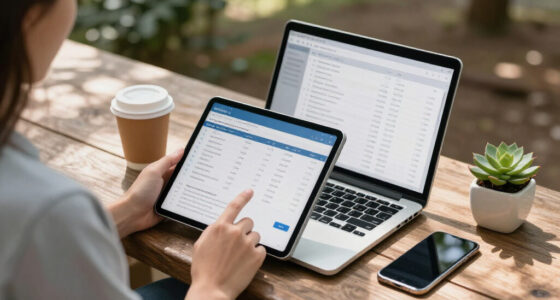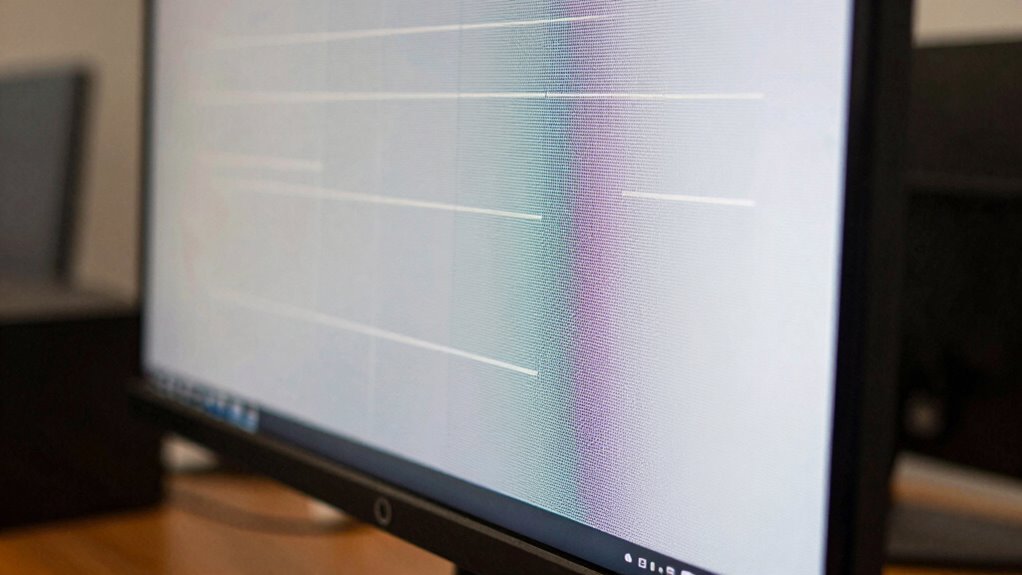

If your high-quality monitor still shows blurry or weird-looking text, it’s often because of how your system handles HiDPI scaling. Even with a high resolution and good pixel density, if your software doesn’t support proper scaling, images and text can appear blurry or too tiny. The solution involves understanding the balance between hardware, resolution, and software support. Keep exploring to discover how calibration and settings can improve your display experience.

Get the latest gadgets delivered free — and shop member deals
- Fast, free delivery on millions of items
- Access to Prime Big Deal Days deals on October 6–7
- Prime Video, Amazon Music and more included
Key Takeaways
- High-resolution monitors need proper HiDPI scaling to enlarge UI elements for readability; without it, text appears tiny or blurry.
- Software that lacks full HiDPI support may render text and icons blurry or improperly scaled, causing visual inconsistencies.
- Insufficient pixel density on large monitors can reduce sharpness, making text look less clear even on high-quality displays.
- Calibration and correct scaling settings are essential to ensure text appears sharp and proportionate across different displays.
- Compatibility issues between hardware, system, and applications can prevent effective HiDPI scaling, leading to weird-looking text.
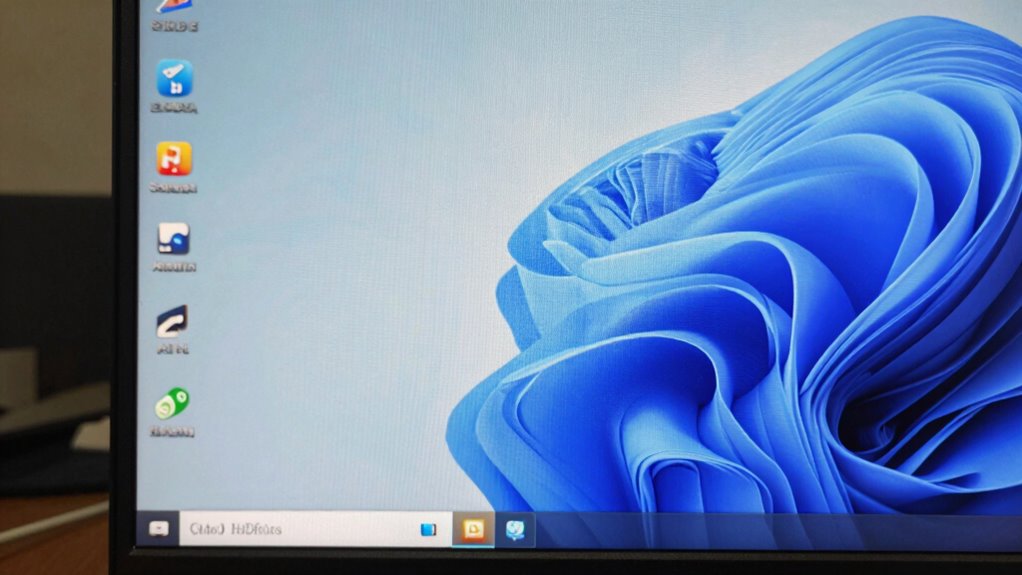
Ever wondered why some screens look so sharp while others appear blurry or tiny? The answer often comes down to pixel density and display resolution. Pixel density refers to how many pixels fit into a given area of your screen, usually measured in pixels per inch (PPI). Higher pixel density means more pixels packed into the same space, resulting in sharper, more detailed images. Display resolution, on the other hand, is the total number of pixels horizontally and vertically—like 1920×1080 or 3840×2160. A higher resolution generally produces a clearer picture, but it doesn’t automatically guarantee that everything will look perfect. When your monitor has a high pixel density, the images, text, and icons should appear crisp and well-defined. However, if your operating system or applications aren’t optimized for this, things can look weird or tiny, even on a good monitor.
This is where HiDPI scaling comes into play. It’s a way for your system to scale up interface elements so they look comfortably sized on high-resolution displays. Without scaling, a 4K monitor might display text so small that you need a magnifying glass to read it, defeating the purpose of having a high-resolution screen. That’s why, on modern displays with high pixel density, scaling becomes essential. It enlarges text, icons, and interface elements proportionally, making them easier to see and interact with. But here’s the catch: not all software handles HiDPI scaling well. Some programs might still show blurry text or tiny icons because they weren’t designed with high-resolution displays in mind.
The challenge is that display resolution and pixel density are intertwined, yet they don’t always scale proportionally. A 4K display with a large screen size offers a high resolution but might have a lower pixel density compared to a smaller 4K monitor. This means that even if your display has a high resolution, if its pixel density isn’t sufficiently high, images and text might not look as sharp as you’d expect. Conversely, a high pixel density on a smaller display can produce extremely sharp visuals but might require more aggressive scaling to make UI elements comfortable to view. So, while a good monitor with high resolution and pixel density promises a crisp picture, the real experience depends heavily on how your system and applications support HiDPI scaling. When they don’t, you’re left with text that looks weird, blurry, or just too small to read comfortably. Understanding pixel density is crucial for optimizing your display experience and avoiding these issues. Additionally, scaling techniques can help bridge the gap between hardware capabilities and software rendering, ensuring a seamless visual experience. Recognizing the importance of display calibration can also improve your overall viewing quality by adjusting settings for optimal clarity and color accuracy. Proper calibration can enhance the effectiveness of visual scaling and ensure your display performs at its best. Being aware of how software compatibility impacts HiDPI support can save you time and frustration when customizing your setup.
As an affiliate, we earn on qualifying purchases.
Frequently Asked Questions
How Do I Enable Hidpi Scaling on My Monitor?
To enable HiDPI scaling on your monitor, go to your display settings and look for the scaling or resolution options. Adjust the scaling to a higher percentage like 150% or 200% for sharper text and better readability. While doing this, guarantee your monitor calibration is accurate to maintain color accuracy, which also enhances overall visual quality. This adjustment helps your high-resolution monitor display content clearly without blurry or weird-looking text.
Does Hidpi Scaling Affect Gaming Performance?
Think of HiDPI scaling like tuning a fine instrument; it can influence your gaming performance. It may slightly reduce graphics optimization if your GPU struggles to handle the higher resolution, but it usually doesn’t cause significant lag. Proper display calibration helps, ensuring visuals stay sharp without taxing your system. Overall, HiDPI scaling might have a minimal impact, but balancing it with your hardware capabilities keeps your gaming experience smooth.
Can Older Applications Support Hidpi Scaling Properly?
Older applications often struggle with HiDPI scaling, leading to application compatibility issues and scaling bugs. You might notice blurry text or interface elements that don’t resize correctly. To improve support, you can try running these apps in compatibility mode, adjust display settings, or use third-party tools. However, some legacy programs may never fully support HiDPI, so expect occasional visual glitches or the need for manual adjustments.
What Hardware Specifications Are Needed for Optimal Hidpi Experience?
Think of your hardware as the engine driving your HiDPI experience. For ideal clarity, you need a high-resolution display, preferably 4K or higher, with a good color calibration for vibrant visuals. A refresh rate of at least 60Hz keeps motion smooth. Pair this with a capable GPU and enough RAM, and you’ll enjoy sharp, vivid text and images, making your monitor truly come alive without the usual blurriness.
How Does Hidpi Scaling Impact Battery Life on Laptops?
HIDPI scaling can slightly impact your laptop’s battery life because higher-resolution displays demand more power for display calibration and maintaining color accuracy. When scaling is enabled, your system works harder to render clear, sharp images, which increases power consumption. To optimize battery life, you might reduce display brightness or adjust scaling settings. Keep in mind, a well-calibrated display with accurate colors can also help you work more efficiently without draining your battery quickly.
Conclusion
Understanding HiDPI scaling is like learning the secret language of your monitor—once you get it, everything becomes clearer. While it might seem tricky at first, knowing how scaling works helps you see your screen in a whole new light. Don’t let the quirks dim your experience; instead, embrace the journey to sharper, more vibrant visuals. With a little patience, your display will finally sing in perfect harmony, turning your tech frustrations into pure visual poetry.
Fall Picks
fall essentials
As an affiliate, we earn on qualifying purchases.