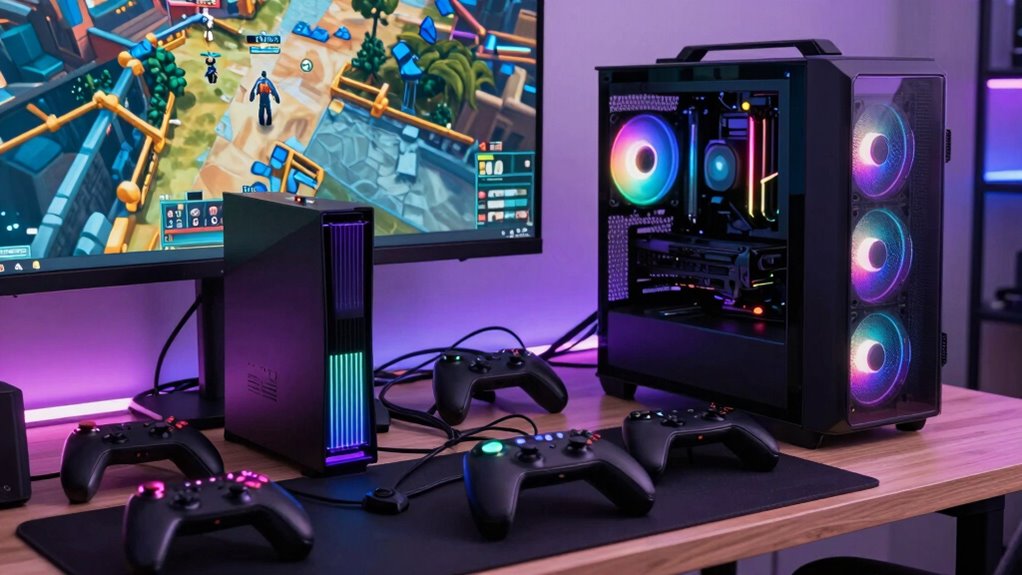

To fix input conflicts between your console and PC, focus on optimizing hardware and settings. Use wired controllers for lower lag, update firmware regularly, and enable game mode on your display. Adjust your monitor or TV to match refresh rates and reduce input delay. Ensuring compatibility and fine-tuning your setup helps balance input response. You’ll discover more effective tips if you explore further—better performance is within your reach.

Get the latest gadgets delivered free — and shop member deals
- Fast, free delivery on millions of items
- Access to Prime Big Deal Days deals on October 6–7
- Prime Video, Amazon Music and more included
Key Takeaways
- Use wired controllers and high-quality cables to minimize input lag and ensure consistent performance across platforms.
- Enable game mode on displays to reduce processing delay and improve responsiveness during gameplay.
- Regularly update controller firmware and display drivers for optimal input responsiveness.
- Match controller polling rate and monitor refresh rate to reduce lag and prevent input conflicts.
- Test different hardware and software settings to find the optimal balance for seamless console and PC input performance.
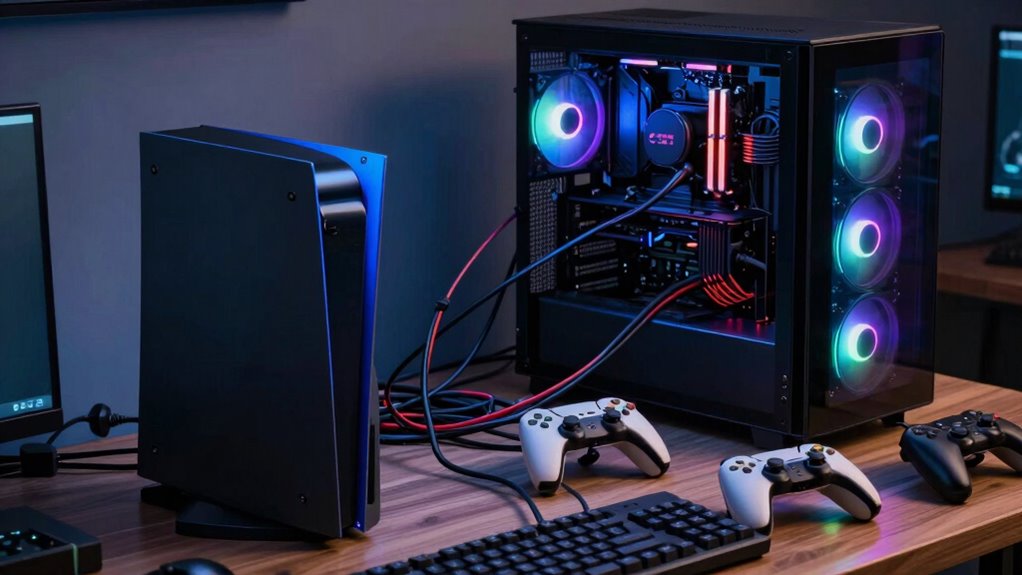
As gaming technology evolves, console and PC setups are increasingly competing over input methods, creating a showdown for gamers seeking the best experience. The core issue often comes down to controller compatibility and input lag optimization. You want your setup to feel seamless, responsive, and compatible, no matter which platform you’re on. But with so many controllers, settings, and hardware configurations, achieving that perfect balance isn’t always straightforward.
First, you need to ensure your controllers are compatible with your system. Many modern controllers, like Xbox or PlayStation controllers, are designed to work across both consoles and PCs. However, some controllers may require specific drivers or adapters to function properly, especially if you’re using third-party options. Check compatibility before purchasing or connecting to avoid frustration. Using controllers that are officially supported or widely recognized ensures smoother operation and reduces compatibility issues. If you’re using a custom or less common controller, verify it works with your system to prevent delays or disconnections during gameplay.
Ensure your controllers are compatible with your system to prevent delays and disconnections during gameplay.
Next, focus on input lag optimization. Input lag—the delay between your action and the game’s response—can ruin your experience and cost you in competitive play. On PCs, you can tweak settings like polling rate and refresh rate, which influence input responsiveness. For consoles, minimizing latency often involves using high-quality HDMI cables and enabling any settings that reduce processing delay. Many gamers overlook the importance of matching their controller’s refresh rate to their monitor’s refresh rate, which prevents lag and tearing. Some advanced setups include using wired connections instead of wireless, as wired controllers tend to have lower input lag. Additionally, understanding controller compatibility and ensuring you select the right hardware can make a significant difference in your overall performance. Proper hardware setup can also help reduce input lag, especially when considering the quality of the cables and adapters used. Regular firmware updates for your controllers and display devices can further enhance responsiveness.
You should also look into software solutions that reduce input delay. For PC gamers, programs like RAW Input or game-specific settings can streamline input processing. On consoles, ensuring your firmware is up-to-date and disabling unnecessary background processes can help. Additionally, investing in a good monitor or TV with a low response time and high refresh rate can significantly improve input lag. Enabling game mode on your display reduces processing time, which makes your inputs register faster.
Ultimately, finding a setup that offers controller compatibility and input lag optimization is about balancing hardware choices and configuration settings. Test different combinations—wired vs. wireless, different controllers, various display options—and see what feels best. With the right adjustments, you’ll bridge the gap between console and PC input performance, making your gaming sessions more responsive and immersive. The key is understanding your gear and fine-tuning your setup to eliminate delays, ensuring your inputs are as quick and accurate as possible. Properly balancing hardware and software components is essential for achieving optimal performance and a satisfying gaming experience.
As an affiliate, we earn on qualifying purchases.
Frequently Asked Questions
Can I Use the Same Controller for Both Console and PC?
Yes, you can use the same controller for both console and PC, but controller compatibility varies. Many modern controllers, like Xbox or PlayStation models, are compatible with both systems, often via USB or Bluetooth. Keep in mind, some controllers may introduce input lag when switching between platforms, so check reviews for performance. Using a wired connection usually minimizes input lag, ensuring smoother gameplay across your console and PC.
How Do I Switch Inputs Quickly Between Devices?
Ever wish switching between your devices was effortless? To switch inputs quickly, use a multi-input HDMI switch or a KVM switch, which minimizes input lag and guarantees device compatibility. Most models allow you to press a button or use a remote to toggle between devices instantly. This way, you avoid delays and enjoy seamless gameplay or work sessions, making your setup more efficient and frustration-free.
Are There Wireless Solutions for Seamless Input Switching?
Yes, wireless solutions exist for seamless input switching, but watch out for wireless latency that might cause delays. To guarantee smooth gameplay, choose a high-quality wireless keyboard or controller with strong input stability. Using devices with low latency features minimizes lag, making switching between devices effortless. Many modern wireless options now prioritize fast response times, so you can enjoy a seamless experience without sacrificing performance.
What Are the Best Keyboards for Gaming on PC and Console?
For gaming on both PC and console, you want a keyboard that balances ergonomics and responsiveness. Look for models with ergonomic designs to reduce strain during long sessions. Mechanical keyboards like the Logitech G Pro or Corsair K95 offer excellent tactile feedback. Pair these with gaming mouse options like the Razer DeathAdder or Logitech G502, which complement your keyboard and enhance overall comfort and precision across platforms.
Does Using a Monitor With Multiple Inputs Improve Gameplay?
Using a monitor with multiple inputs can improve your gameplay by reducing the need to switch cables, saving you time and hassle. Make sure your monitor is well calibrated for peak image quality, which enhances your gaming experience. Additionally, look for a monitor with low input lag, as this minimizes delay between your actions and on-screen responses, giving you a competitive edge. This setup helps create a seamless gaming experience across devices.
Conclusion
While consoles and PCs often clash over inputs, finding harmony reminds you that technology should unite, not divide. Just like players adapt and learn, you can blend setups to enhance your experience. In the end, it’s not about which system wins, but how you embrace the strengths of both. Together, they can create a seamless gaming environment, proving that sometimes, the best victories come from cooperation rather than competition.
Fall Picks
fall essentials
As an affiliate, we earn on qualifying purchases.