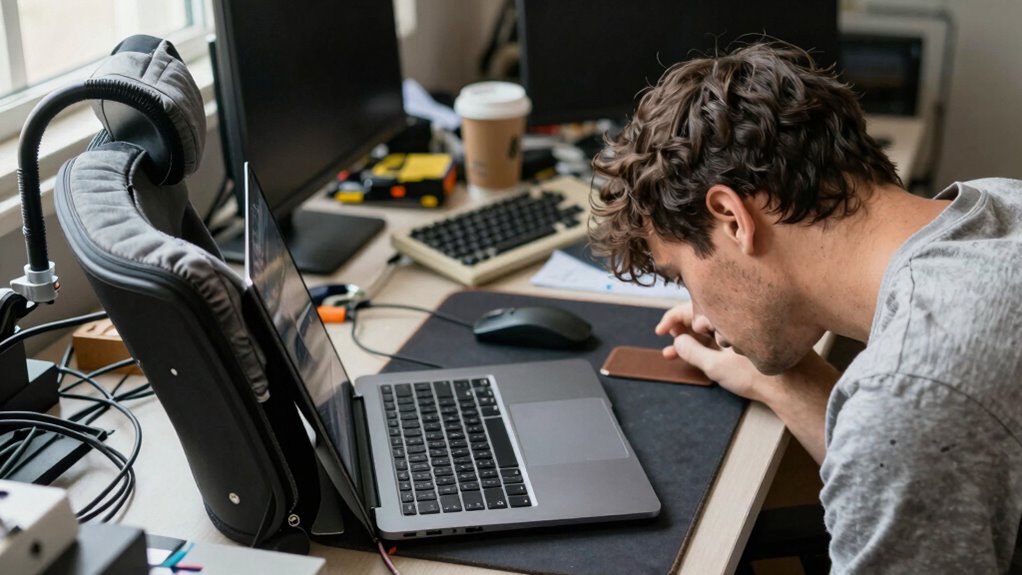

Your desk setup might be quietly damaging your neck without you realizing it. Common mistakes include setting your chair too high or low, causing neck strain and poor posture. Your monitor should be directly in front at eye level; if it’s too high or low, it forces awkward head positions. Small adjustments—like proper chair height and monitor placement—can make a big difference. Keep going to discover how to fix these issues and protect your neck long-term.

Get the latest gadgets delivered free — and shop member deals
- Fast, free delivery on millions of items
- Access to Prime Big Deal Days deals on October 6–7
- Prime Video, Amazon Music and more included
Key Takeaways
- Ensure your chair height allows feet flat on the ground and knees at 90°, promoting proper spinal alignment.
- Position your monitor directly in front at eye level to prevent neck tilting and reduce strain.
- Avoid monitors that are too high or low; use adjustable stands to maintain the top of the screen at eye level.
- Keep your posture neutral by sitting back in the chair, with shoulders relaxed and head aligned over the spine.
- Make small, consistent ergonomic adjustments to prevent long-term neck discomfort and improve overall workspace health.

Many people unknowingly make ergonomic mistakes at their desks that can lead to neck pain and discomfort. One of the most common issues involves chair height and monitor placement. If your chair is too high or too low, it can cause you to crane your neck up or down constantly, straining your muscles over time. The goal is to set your chair height so that your feet are flat on the ground, your knees are at a 90-degree angle, and your hips are slightly higher than your knees. This position promotes good posture and reduces undue pressure on your neck and back. Once your chair is properly adjusted, you should focus on your monitor placement. Your screen should be directly in front of you, about an arm’s length away, with the top of the monitor roughly at eye level. When your monitor is too low, you tend to look down, which causes your neck to bend forward and increases strain on your cervical spine. Conversely, if it’s too high, you may tilt your head back, leading to discomfort and tension. Proper monitor placement ensures that you keep your head aligned with your spine, reducing the risk of neck pain. Many people overlook these details, frequently adjusting their chairs and monitors without considering the impact on their posture. For example, a monitor placed too low might seem convenient initially, but it forces you to look down all day, which can cause chronic neck issues. Similarly, a chair set too high can make your legs dangle or put strain on your lower back, which inadvertently affects your upper body posture. To correct this, invest in a monitor stand or adjustable arm to raise your screen to eye level, eliminating the need to tilt your head. When adjusting your chair, make sure your hips are slightly higher than your knees, and your feet rest flat on the floor or on a footrest if needed. This setup encourages a neutral spine position and keeps your head aligned over your shoulders. Remember, small adjustments can have a significant impact over time. Taking the time to find the right chair height and monitor placement isn’t just about comfort; it’s about safeguarding your neck health. When your posture is correct, you’ll notice less tension and fewer headaches, and you’ll work more efficiently without the distraction of discomfort. Don’t underestimate the importance of these simple ergonomic changes—they’re fundamental to preventing long-term neck problems and creating a healthier, more comfortable workspace. Proper ergonomic setup is essential for maintaining good posture and preventing strain.
As an affiliate, we earn on qualifying purchases.
Frequently Asked Questions
How Can I Tell if My Desk Is Too High or Low for My Neck?
You’ll know your desk height isn’t right if your neck starts aching or you’re constantly tilting your head. Ideally, your desk should match your posture alignment, with your elbows at a 90-degree angle and your monitor eye level. If your neck feels strained, it’s a clear sign your desk height is off. Adjust it so your shoulders stay relaxed and your screen is at eye level—your neck will thank you.
What Are the Best Exercises to Prevent Neck Strain at Work?
To prevent neck strain at work, do daily stretching routines like neck tilts, shoulder rolls, and chin tucks. These simple exercises improve flexibility and reduce tension. Also, focus on posture correction by sitting upright, keeping your monitor at eye level, and avoiding forward head posture. Regularly stretching and maintaining good posture will help you stay comfortable and prevent long-term neck problems.
How Often Should I Take Breaks to Protect My Neck?
Don’t wait until your neck feels sore—take breaks every 30 to 60 minutes to avoid overdoing it. Use this time for simple stretching routines to loosen tight muscles and improve posture. Keep hydration habits in check, as staying well-hydrated helps maintain muscle flexibility. Remember, taking regular breaks is like hitting the reset button, helping you stay comfortable and preventing neck strain before it becomes a problem.
Can Ergonomic Accessories Really Improve Neck Health?
Yes, ergonomic accessories can considerably improve your neck health. Items like adjustable keyboard stands, monitor arms, and ergonomic chairs help maintain proper posture, reducing strain and discomfort. By aligning your workspace to support your neck and spine, these accessories encourage healthier habits and prevent long-term issues. Incorporating ergonomic tools into your daily routine makes it easier to stay comfortable and protect your neck during long work hours.
What Signs Indicate My Workspace Is Causing Neck Problems?
If you’re experiencing frequent neck aches or stiffness, your workspace might be a red flag. Pay attention if you find yourself constantly adjusting your posture or tilting your head while working. Your desk setup could be off, causing strain. Look for signs like headaches, shoulder pain, or limited movement. Making simple posture adjustments and optimizing your desk setup can help prevent ongoing neck problems and keep you comfortable all day.
Conclusion
By fixing these 7 ergonomic mistakes, you can protect your neck and improve your overall comfort. Don’t your well-being and productivity deserve better support? Making small adjustments today can prevent long-term pain and discomfort. So, why keep risking your health when simple changes can make such a big difference? Take charge of your workspace now—your neck will thank you for it. After all, a healthier, more comfortable you is just a few tweaks away.
Fall Picks
fall essentials
As an affiliate, we earn on qualifying purchases.