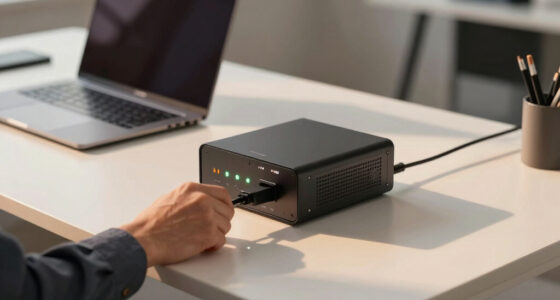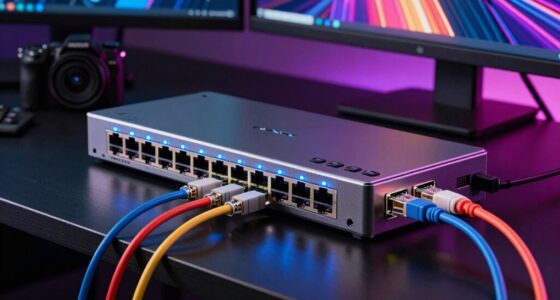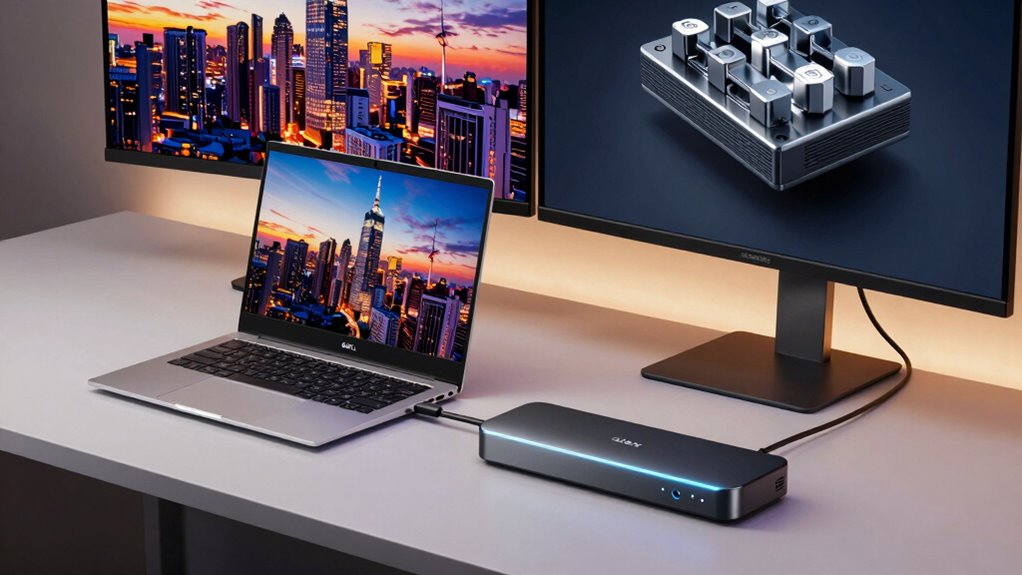
Finding the right docking station for a Dell XPS setup with dual monitors can significantly enhance your workspace. The best options balance multiple display outputs, power delivery, and build quality without overwhelming your setup or budget. The Dell WD19S often stands out as a reliable overall choice, while the Dell Thunderbolt 4 Dock offers premium performance for demanding users. Many docks struggle with compatibility, power limits, or clutter, making it essential to choose carefully. Continue reading for a detailed breakdown of the best options and what to consider before buying.

Get the latest gadgets delivered free with Prime
- Fast, free delivery on millions of items
- Prime Video, Amazon Music and more included
- Member-only deals all year
Complete the kit



Key Takeaways
- Top-performing docks typically support 4K dual monitor setups with reliable connectivity.
- Power delivery capability varies, influencing whether you can charge your Dell XPS through the dock or need a separate charger.
- Thunderbolt docks offer faster data transfer and more versatility but come at a higher price point.
- Build quality and port variety are critical for durability and future-proofing your workspace.
- The most affordable options often sacrifice some features like multiple display outputs or higher wattage charging.
| Anker 8-in-1 USB-C Hub with Dual 4K HDMI and Power Delivery |  | Best Versatile Connectivity Hub | Number of HDMI ports: 2 | Maximum resolution: 4K@60Hz (single), 4K@30Hz (dual) | Power Delivery: Up to 85W | VIEW ON AMAZON | See Our Full Breakdown |
| Dell Pro Laptop Docking Station WD25, USB-C, 100W, DisplayPort, HDMI |  | Best for Multi-Display Expansion and Sustainability | Display Support: Up to 4 high-res displays | Power Output: 100W | Ports: DisplayPort, HDMI, USB-C, USB | VIEW ON AMAZON | See Our Full Breakdown |
| Dell Thunderbolt 4 Dock with 3 Display Outputs (2 HDMI + 1 DisplayPort) 16-in-1 Laptop Dock |  | Best for Dell Power Users with Triple 4K Support | Display Outputs: 2 HDMI 4K@60Hz, 1 DisplayPort 4K@60Hz | USB Ports: 2×USB-C 10Gbps, 3×USB-A (10Gbps/5Gbps), 2×USB 2.0 | Ethernet: Gigabit RJ45 | VIEW ON AMAZON | See Our Full Breakdown |
| USB-C Laptop Docking Station Dual Monitor HDMI USB-C Hub Multiport Adapter |  | Best for High-Resolution Multi-Monitor Setups | Number of Ports: 14 | HDMI Ports: 2 (4K) | DisplayPort: 1 (4K) | VIEW ON AMAZON | See Our Full Breakdown |
| Dell Thunderbolt 4 Docking Station with Triple 4K Displays and Power Adapter |  | Best for Dell Enthusiasts Needing Triple 4K Output | Display Outputs: 3 (Dual HDMI, DisplayPort) 4K@60Hz | USB Ports: 3 USB 3.0, 1 USB C | Ethernet: Gigabit RJ45 | VIEW ON AMAZON | See Our Full Breakdown |
| Dell WD19S Docking Station 180W with Dual Monitor Support |  | Best Overall for Dell Ecosystem Compatibility | Hardware Interface: DisplayPort, Ethernet, HDMI, USB 3.1 Type A, USB Type C | Compatible Devices: Dell Latitude 7370, Dell Precision 3510, 5510, 7510, 7710 | Total USB Ports: 3 | VIEW ON AMAZON | See Our Full Breakdown |
| Dell WD19S 180W Docking Station with 130W Power Delivery, USB-C, HDMI, Dual DisplayPort, Black |  | Best for Compact Dual-Display Setups | Power Delivery: 130W | Ports: USB-C, HDMI, Dual DisplayPort | Color: Black | VIEW ON AMAZON | See Our Full Breakdown |
| Dell WD19TB Thunderbolt Dock – Renewed |  | Best for High-Speed Data and Versatile Connectivity | Power Supply: 180W | Connectivity Ports: 2x DisplayPort 1.4, 1x HDMI 2.0B, 1x USB-C multifunction DisplayPort, 2x USB-A 3.1, Gigabit Ethernet, Thunderbolt 3 | Region Compatibility: 120/230V, 50/60Hz | VIEW ON AMAZON | See Our Full Breakdown |
| WD19 Dell Docking Station – Dual Monitor USB-C Dock with 130W & HDMI Cable |  | Best for Versatile Connectivity with Included Accessories | Power Delivery: 130W | Video Ports: HDMI, VGA, mini-DisplayPort | Included Accessories: HDMI cable, microfiber cleaning cloth | VIEW ON AMAZON | See Our Full Breakdown |
| Dell WD19S Docking Station Dual Monitor – 180W USB-C Dock with HDMI and DisplayPort |  | Best for Reliable Dual Monitor Support with High Power | Hardware Interface: Ethernet, HDMI, USB | Compatible Devices: Dell Latitude 7370 | Total USB Ports: 5 | VIEW ON AMAZON | See Our Full Breakdown |
| Acer USB-C Docking Station Dual Monitor, 9-in-1 Laptop Dock with 2 HDMI |  | Best Value for Dual 4K Monitoring and Versatile Connectivity | Number of HDMI ports: 2 | HDMI resolution: 4K@60Hz | USB-A ports: 3 | VIEW ON AMAZON | See Our Full Breakdown |
| Dell WD19TBS Thunderbolt Dock Bundle – 4K Display, 1 Year Warranty, Dual Monitor with 180W Adapter, HDMI, DisplayPort, Thunderbolt Cable |  | Best for High-Resolution, Multi-Display Setups in Professional Environments | Compatibility: Universal, supports HP and Lenovo notebooks | Display support: Up to three displays, including 5K and dual 4K | Power delivery: 180W | VIEW ON AMAZON | See Our Full Breakdown |
| docking station for dell xps dual monitor | Power Delivery |
|---|---|
| Anker 8-in-1 USB-C Hub with Du | Up to 85W |
| Dell Pro Laptop Docking Statio | — |
| Dell Thunderbolt 4 Dock with 3 | 100W USB-C |
| USB-C Laptop Docking Station D | — |
| Dell Thunderbolt 4 Docking Sta | — |
| Dell WD19S Docking Station 180 | — |
| Dell WD19S 180W Docking Statio | 130W |
| Dell WD19TB Thunderbolt Dock | — |
| WD19 Dell Docking Station | 130W |
| Dell WD19S Docking Station Dua | — |
| Acer USB-C Docking Station Dua | 100W |
| Dell WD19TBS Thunderbolt Dock | 180W |
More Details on Our Top Picks
Anker 8-in-1 USB-C Hub with Dual 4K HDMI and Power Delivery
This Anker hub stands out for offering extensive ports in a compact form, making it an excellent choice for users who need dual 4K monitors alongside a variety of peripherals. Compared to the Dell WD19S, it provides more diverse connectivity options, including Ethernet and SD card reader, while supporting high refresh rates at 4K. However, it’s less ideal for macOS users since dual displays will mirror, and it requires a 100W PD charger for full charging, which could be a setup hurdle. Designed for professionals who need a flexible, all-in-one port solution, this hub excels in multitasking but sacrifices some compatibility with Apple systems and Linux environments.
- Supports dual 4K displays at 30Hz
- Extensive port options including Ethernet and SD reader
- Supports high-speed charging up to 85W
- Dual monitors mirror on macOS
- Requires a 100W PD charger and specific USB-C cable
Pros:- Supports dual 4K displays with high refresh rates
- Provides a wide array of ports including Ethernet and SD card reader
- Supports fast charging up to 85W
Cons:- Dual monitors mirror on macOS, limiting extended display use
- Requires a 100W PD charger and compatible USB-C cable for full functionality
Best for: Creative professionals and remote workers needing diverse connectivity options
Not ideal for: Mac users or Linux users who require extended dual display support without mirroring
- Number of HDMI ports:2
- Maximum resolution:4K@60Hz (single), 4K@30Hz (dual)
- Power Delivery:Up to 85W
- USB-A ports:2
- Ethernet port:Yes
- SD card reader:microSD/SD
- Compatibility:USB-C, USB4, Thunderbolt, Windows 10/11, ChromeOS
Our verdict“This hub is best suited for Windows users who prioritize extensive port options and high-resolution display support in a portable package.”
Dell Pro Laptop Docking Station WD25, USB-C, 100W, DisplayPort, HDMI
Compared to the Dell Thunderbolt 4 Dock, the WD25 offers broader compatibility with both Dell and non-Dell PCs, supporting up to four high-resolution displays and 100W charging. Its focus on sustainability, with recycled materials and energy savings, makes it ideal for environmentally conscious offices. However, setup may be complex for non-technical users, and some users might find the lack of detailed port specifications limiting when planning their connection setups. Designed for large-scale multi-monitor setups in corporate environments, this dock emphasizes durability and eco-friendliness but may be overkill for simpler home setups.
- Supports up to four high-res displays
- Provides 100W power delivery for charging
- Constructed with recycled materials and energy-saving features
- Setup can be complex for non-technical users
- Limited specific port configuration details
Pros:- Supports up to four high-resolution displays
- Offers 100W power delivery for charging multiple devices
- Eco-friendly with recycled materials and reduced standby power
Cons:- Setup can be complex for less technical users
- Limited detailed port specifications may cause compatibility issues
Best for: Corporate users and IT managers deploying multi-monitor workstations
Not ideal for: Home users seeking simple, plug-and-play setups or Linux users needing detailed port info
- Display Support:Up to 4 high-res displays
- Power Output:100W
- Ports:DisplayPort, HDMI, USB-C, USB
- Compatibility:Dell and non-Dell PCs
- Sustainable Features:Recycled materials, energy reduction
Our verdict“This dock is best for organizations requiring durable, multi-monitor support with a focus on sustainability.”
Dell Thunderbolt 4 Dock with 3 Display Outputs (2 HDMI + 1 DisplayPort) 16-in-1 Laptop Dock
This Dell Thunderbolt 4 Dock excels at providing triple 4K display support, making it ideal for high-end productivity environments, especially for Dell users. Its combination of multiple USB ports, SD/TF slots, Ethernet, and 100W charging facilitates seamless multitasking. Compared to the Anker hub, it offers better compatibility with Dell laptops and optimized performance via Thunderbolt 4, but it’s less flexible for non-Dell systems. The need for a Thunderbolt 4 port limits its use to newer Dell devices. Designed for power users and professionals requiring maximum external display support, its performance is top-tier but limited to Dell hardware.
- Supports triple 4K displays at 60Hz
- High-speed data transfer with multiple USB ports
- Powerful 100W charging for Dell laptops
- Limited to Dell devices, not compatible with many non-Dell laptops
- Requires Thunderbolt 4 port for optimal operation
Pros:- Supports triple 4K displays at 60Hz
- High-speed USB data transfer with multiple ports
- Provides 100W charging and stable Ethernet connection
Cons:- Limited to Dell systems with Thunderbolt 4 ports
- No explicit mention of driver or software requirements
Best for: Dell professionals and power users with Thunderbolt 4-compatible laptops
Not ideal for: Non-Dell users or those with systems lacking Thunderbolt 4 support
- Display Outputs:2 HDMI 4K@60Hz, 1 DisplayPort 4K@60Hz
- USB Ports:2×USB-C 10Gbps, 3×USB-A (10Gbps/5Gbps), 2×USB 2.0
- Ethernet:Gigabit RJ45
- Power Delivery:100W USB-C
- Compatibility:Dell XPS, Inspiron, Latitude, Precision
Our verdict“This dock is the top choice for Dell users who need triple 4K display support and high-speed connectivity without compromise.”
USB-C Laptop Docking Station Dual Monitor HDMI USB-C Hub Multiport Adapter
This 14-in-1 docking station offers an impressive amount of ports, including dual HDMI 4K outputs, DisplayPort, and 100W charging, making it suitable for users who need multiple high-resolution displays and fast data transfer. Compared with the Dell WD19S, it supports both HDMI and DisplayPort outputs, providing flexibility for different monitor configurations. On the downside, its compatibility is mostly limited to Windows, and some USB-C devices may not support all functions, like HDMI or DisplayPort. Designed for professionals and gamers needing extensive display options and rapid data throughput, it excels in versatility but requires attention to device compatibility.
- Supports dual and triple 4K monitors
- Offers fast data transfer with multiple USB ports
- Provides 100W power delivery
- Compatibility limited to Windows systems for full features
- Charging cable and power adapter not included
Pros:- Supports dual 4K monitor output at 60Hz
- Fast data transfer with multiple USB ports
- Supports 100W charging and reliable Ethernet
Cons:- Limited compatibility with MacOS and Linux
- Charging cable and power supply are not included
Best for: Windows-based professionals and gamers needing multiple 4K displays and high-speed data transfer
Not ideal for: Mac users or Linux users seeking full port support and plug-and-play compatibility
- Number of Ports:14
- HDMI Ports:2 (4K)
- DisplayPort:1 (4K)
- USB-C Power Delivery:100W
- Ethernet:1Gbps
- Supported Resolutions:4K@60Hz (HDMI), 4K@30Hz (HDMI), 4K@30Hz (DisplayPort)
Our verdict“This multiport adapter is perfect for Windows users requiring versatile, high-res multi-monitor support in a compact form.”
Dell Thunderbolt 4 Docking Station with Triple 4K Displays and Power Adapter
Designed primarily for Dell users, this Thunderbolt 4 dock supports triple 4K displays at 60Hz, making it ideal for demanding multitasking scenarios. Its array of USB ports, SD/TF card readers, and Gigabit Ethernet ensures comprehensive connectivity. Compared with the Dell WD19TBS, it offers dedicated Thunderbolt 4 support for faster data transfer and more reliable performance. However, its full benefits are limited to Dell devices with Thunderbolt 4 ports, restricting cross-brand flexibility. Targeted at power users with Dell laptops requiring maximum display outputs and high-speed peripherals, this dock is a solid choice for high-end professional setups.
- Supports three 4K displays at 60Hz
- Multiple USB 3.0 and USB C ports for peripherals
- Provides 100W charging and Gigabit Ethernet
- Limited to Dell Thunderbolt 4-compatible systems
- Requires Thunderbolt 4 port for optimal performance
Pros:- Supports triple 4K displays at 60Hz
- High-speed data transfer with multiple USB ports
- 100W power delivery and stable Ethernet connection
Cons:- Limited compatibility outside Dell Thunderbolt 4 systems
- No explicit mention of software or driver requirements
Best for: Dell power users and IT managers deploying high-end multi-monitor workstations
Not ideal for: Users with non-Dell systems lacking Thunderbolt 4, or seeking universal compatibility
- Display Outputs:3 (Dual HDMI, DisplayPort) 4K@60Hz
- USB Ports:3 USB 3.0, 1 USB C
- Ethernet:Gigabit RJ45
- Charging Power:100W
- Compatibility:Dell XPS, Inspiron, Latitude, Precision, Vostro
Our verdict“This dock is ideal for Dell users needing maximum display support and fast connectivity in demanding professional contexts.”
Dell WD19S Docking Station 180W with Dual Monitor Support
This Dell WD19S stands out for its robust 180W power delivery and reliable dual monitor support, making it ideal for users heavily invested in Dell hardware. Compared with the WD19TB Thunderbolt Dock, it offers comparable power but lacks Thunderbolt 3 support, which can limit data transfer speeds for high-performance peripherals. Its extensive port selection supports HDMI, DisplayPort, Ethernet, and multiple USB devices, providing a comprehensive connection hub. However, this model is primarily optimized for Dell laptops, so non-Dell users might face compatibility issues or need additional adapters. Its weight of 3.2 pounds adds stability but reduces portability. If you prioritize seamless Dell integration and high power output, this dock is a strong choice.
Pros:- Supports dual monitor setup with HDMI and DisplayPort
- High 180W power delivery ensures fast charging for laptops
- Multiple USB ports for peripherals
Cons:- Limited compatibility outside Dell systems
- Relatively heavy at 3.2 pounds, reducing portability
Best for: Dell users who need a reliable, high-powered docking station with extensive connectivity for multiple peripherals and dual monitors.
Not ideal for: Non-Dell users or those seeking Thunderbolt 3 support for faster data transfer, as compatibility and speed could be limited.
- Hardware Interface:DisplayPort, Ethernet, HDMI, USB 3.1 Type A, USB Type C
- Compatible Devices:Dell Latitude 7370, Dell Precision 3510, 5510, 7510, 7710
- Total USB Ports:3
- Number of Ports:8
- Total HDMI Ports:1
- Wattage:180W
Our verdict“This dock is perfect for Dell users who need a powerful, all-in-one connection hub with high power output.”
Dell WD19S 180W Docking Station with 130W Power Delivery, USB-C, HDMI, Dual DisplayPort, Black
This Dell WD19S offers a sleek, space-saving design with solid dual display support and a 130W power output, making it suitable for professional environments where desk space is limited. Compared with the WD19TB Thunderbolt Dock, it lacks Thunderbolt 3, so data transfer may be slower for high-speed peripherals. Its ports include USB-C, HDMI, and Dual DisplayPort, providing flexible video options, but it doesn’t specify additional USB or audio features. The absence of a dedicated Ethernet port could be a drawback for wired network users. Its smaller footprint makes it easier to integrate into tight workspaces, but it may not support as many peripherals or high-demand devices as larger docks. This pick makes sense for users who prioritize compactness without sacrificing dual monitor capabilities.
Pros:- Compact and space-efficient design
- Supports dual monitors with HDMI and DisplayPort
- Adequate 130W power delivery for most Dell laptops
Cons:- Limited detailed specifications and ports
- No dedicated Ethernet port for wired network connectivity
Best for: Professionals needing a dual monitor setup in a compact form factor, primarily with Dell laptops.
Not ideal for: Users requiring extensive ports or Thunderbolt 3 support for high-bandwidth peripherals, as this model is more limited in expandability.
- Power Delivery:130W
- Ports:USB-C, HDMI, Dual DisplayPort
- Color:Black
Our verdict“Ideal for space-conscious Dell users who need reliable dual monitor support without extra ports or Thunderbolt support.”
Dell WD19TB Thunderbolt Dock – Renewed
The Dell WD19TB Thunderbolt Dock excels with its broad array of ports, including Thunderbolt 3, multiple DisplayPort 1.4, HDMI 2.0B, and USB-A options, supporting high-speed data transfer and multiple high-resolution displays. Compared to the standard WD19S, it offers Thunderbolt 3, enabling faster peripherals and daisy-chaining multiple devices. Its 180W power supply supports fast charging and power for demanding laptops and peripherals. The dock’s bulkier design, however, might be a downside for small or portable setups, and since it’s a renewed product, warranty and reliability could vary. Compatibility with Dell systems is a must for full feature access, making it less suitable for non-Dell users. This is best suited for power users who need maximum connectivity and speed.
Pros:- Supports multiple high-resolution displays via DisplayPort and HDMI
- High 180W power supply for fast charging and device operation
- Multiple ports, including Thunderbolt 3 and USB-A
Cons:- Bulkier design not suitable for tight spaces
- Renewed status may limit warranty and long-term reliability
Best for: Power users with Dell systems seeking high-speed data transfer, multiple display outputs, and Thunderbolt 3 support.
Not ideal for: Users with limited space or those preferring new, non-refurbished hardware, as the renewed condition may involve warranty concerns.
- Power Supply:180W
- Connectivity Ports:2x DisplayPort 1.4, 1x HDMI 2.0B, 1x USB-C multifunction DisplayPort, 2x USB-A 3.1, Gigabit Ethernet, Thunderbolt 3
- Region Compatibility:120/230V, 50/60Hz
Our verdict“Best for demanding professionals who need maximum connectivity, speed, and power in a Dell-compatible dock.”
WD19 Dell Docking Station – Dual Monitor USB-C Dock with 130W & HDMI Cable
This WD19 model combines a comprehensive set of ports, including HDMI, VGA, and mini-DisplayPort, supporting dual monitor setups for varied display needs. Compared with the B0DJTBJWF6, it offers more video output options but fewer USB ports and slightly less power delivery (130W). Its included HDMI cable and microfiber cloth add convenience, but it requires confirmation of compatibility with your Dell laptop to avoid connectivity issues. Its broader video options can serve users who need legacy connections like VGA, unlike other models focused solely on HDMI or DisplayPort. This dock makes sense for users with diverse display requirements and a preference for bundled accessories, but it might fall short for those needing extensive USB or high-power support.
Pros:- Supports dual monitor setup with HDMI, VGA, and mini-DisplayPort
- Includes HDMI cable and microfiber cloth
- Wide compatibility with Dell laptops
Cons:- Limited to Dell devices for optimal performance
- Fewer USB ports and lower power delivery compared to larger docks
Best for: Users who need flexible display options and value included accessories for a simplified setup.
Not ideal for: Users seeking maximum USB ports or higher power output for charging multiple devices simultaneously.
- Power Delivery:130W
- Video Ports:HDMI, VGA, mini-DisplayPort
- Included Accessories:HDMI cable, microfiber cleaning cloth
Our verdict“Great for users with diverse display needs and an appreciation for included accessories, primarily within the Dell ecosystem.”
Dell WD19S Docking Station Dual Monitor – 180W USB-C Dock with HDMI and DisplayPort
This WD19S model emphasizes strong dual monitor support with HDMI and DisplayPort, combined with a hefty 180W power supply, ensuring your Dell laptop stays charged during intensive work sessions. Compared to the B0CLF6RZYZ, it offers higher power delivery and more USB ports, making it suitable for users with multiple peripherals. Its compatibility is primarily optimized for Dell laptops, which guarantees better performance but limits flexibility for non-Dell devices. The weight of 1.79 kg adds some portability, yet it remains primarily a desktop solution. If you need a dependable, high-power dock for dual displays within the Dell ecosystem, this model fits well.
Pros:- Supports dual monitor setup with HDMI and DisplayPort
- 180W power output for charging and operation
- Multiple USB ports for peripherals
Cons:- Limited to Dell laptops for full compatibility
- No mention of audio or SD card slots
Best for: Dell users who require high power and reliable dual monitor support with multiple USB peripherals.
Not ideal for: Non-Dell users or those who need additional audio, SD card, or legacy port support, as this model is focused on core connectivity.
- Hardware Interface:Ethernet, HDMI, USB
- Compatible Devices:Dell Latitude 7370
- Total USB Ports:5
- Number of Ports:8
- Total HDMI Ports:1
- Wattage:180W
Our verdict“This dock is ideal for Dell users seeking dependable dual monitor support and high power delivery in a straightforward package.”
Acer USB-C Docking Station Dual Monitor, 9-in-1 Laptop Dock with 2 HDMI
This Acer USB-C docking station stands out for offering dual 4K@60Hz HDMI outputs, making it a strong choice for users who need crisp, high-quality displays. Compared to the Dell WD19TBS, it provides more USB-A ports and SD card slots, which adds to its versatility. However, it requires a device with full USB-C video output support, limiting compatibility with some laptops. Mac users can only mirror their screens, not extend, which can be a drawback for those seeking a true dual-monitor setup. The 100W power delivery ensures rapid charging, but an additional power adapter is necessary, adding to clutter. Overall, this option is well-suited for users who prioritize high-res output and multiple peripherals without needing full device compatibility or built-in power.
Pros:- Supports dual 4K@60Hz HDMI output for sharp, high-res displays
- Multiple USB-A ports and SD card slots for added connectivity
- Power delivery of up to 100W for fast charging
Cons:- Requires a compatible device with USB-C video output support
- Mac users can only mirror displays, not extend
Best for: Budget-conscious professionals who want dual 4K displays with extensive peripheral support on USB-C laptops.
Not ideal for: Mac users or those with laptops lacking full USB-C display capabilities, as they can only mirror displays or face limited functionality.
- Number of HDMI ports:2
- HDMI resolution:4K@60Hz
- USB-A ports:3
- USB-C ports:1
- SD card slots:Yes
- Power delivery:100W
Our verdict“This dock is ideal for users needing high-quality dual displays and versatile connectivity on compatible Windows laptops.”
Dell WD19TBS Thunderbolt Dock Bundle – 4K Display, 1 Year Warranty, Dual Monitor with 180W Adapter, HDMI, DisplayPort, Thunderbolt Cable
The Dell WD19TBS Thunderbolt Dock excels at supporting multiple high-resolution displays, including dual 4K and even 5K setups, making it ideal for demanding professional workflows. Unlike the Acer dock, it offers universal compatibility, working seamlessly across various brands like HP and Lenovo, and supports more powerful 180W charging. It also features flexible mounting options and easy firmware updates, which enhance workspace organization and ease of use. However, its reliance on Thunderbolt standards may mean some laptops require specific versions to unlock full performance, and detailed port information is less transparent. The price is higher, reflecting its premium capabilities, but for users needing maximum display flexibility and robust power, this dock delivers.
Pros:- Supports up to three displays, including dual 4K and 5K resolutions
- Universal compatibility with various laptop brands
- Easy firmware updates without rebooting
Cons:- Requires specific Thunderbolt standards for optimal performance
- Price and detailed port information may not be transparent
Best for: Professionals or creative teams seeking high-res, multi-monitor setups with broad compatibility and advanced features.
Not ideal for: Casual users or those with budget constraints, as it may require specific Thunderbolt standards and has a higher price point.
- Compatibility:Universal, supports HP and Lenovo notebooks
- Display support:Up to three displays, including 5K and dual 4K
- Power delivery:180W
- Connectivity:Thunderbolt, HDMI, DisplayPort
- Cable length:0.8 meters
- Warranty:1 year
Our verdict“This dock is best suited for professionals demanding maximum display flexibility and high-resolution support with broad device compatibility.”

How We Picked
Each docking station was evaluated based on performance, compatibility with Dell XPS models, port selection, power delivery, build quality, and overall value. We prioritized docks that support dual 4K monitors, offer sufficient charging power, and maintain reliable connectivity. Docks were also assessed for ease of setup, durability, and user reviews to ensure real-world usability. The ranking reflects a balance between premium features and affordability, aiming to help different types of buyers find their best fit.Factors to Consider When Choosing Docking Station For Dell Xps Dual Monitors
Choosing the right docking station for your Dell XPS with dual monitors involves understanding your specific needs and the tradeoffs involved. A well-chosen dock can streamline your workspace, boost productivity, and reduce clutter, but selecting the wrong one may lead to performance issues or insufficient power. Here are key factors to consider beyond just port count and price, helping you make a more informed decision.Display Compatibility and Outputs
Ensuring your dock supports dual 4K monitors at a smooth refresh rate is crucial for a crisp, seamless experience. Pay attention to the types of outputs—HDMI, DisplayPort, Thunderbolt—since your monitors might require specific connections. Some docks support daisy-chaining or multiple outputs, which can simplify cable management. Avoid docks with limited or incompatible outputs if you plan to expand or upgrade your monitors in the future.
Power Delivery and Charging Capacity
Power delivery (PD) determines whether your dock can charge your Dell XPS while in use, reducing cable clutter. Look for docks offering at least 130W if you want to power a high-performance laptop without a separate charger. Cheaper docks may provide insufficient wattage, leading to slower charging or power deficits during intensive tasks. Balancing cost and power support is key for a smooth workflow without interruptions.
Connectivity and Port Selection
Beyond video outputs, consider other ports like USB-A, USB-C, Ethernet, and audio jacks. A versatile dock simplifies connecting peripherals such as external drives, keyboards, or network cables. Be mindful of the placement and number of ports to match your current and future accessories. Overloading a dock with unnecessary ports can add clutter or impact performance, so choose a model aligned with your specific device ecosystem.
Build Quality and Longevity
A durable, well-made dock prevents frequent failures and ensures long-term reliability. Metal chassis and quality connectors contribute to better heat dissipation and sturdiness. Cheaper plastic models might save money initially but could degrade or break over time. Consider customer reviews regarding longevity and manufacturer warranties to avoid replacements down the line.
Price vs. Features Balance
Higher-priced docks often deliver faster data transfer, more ports, and better power delivery, but may be unnecessary for basic setups. Conversely, budget options might lack key features like multiple 4K outputs or sufficient charging wattage. Clarify your priorities—if you rely heavily on multiple displays or high-speed data transfer, investing in a premium dock makes sense. For casual use, a more affordable model could suffice without sacrificing essential functionality.
Frequently Asked Questions
Can I connect two 4K monitors to a Dell XPS with a single dock?
Yes, many docks are designed to support dual 4K monitors, but compatibility depends on the dock’s outputs and your Dell XPS model. Ensure the dock explicitly mentions dual 4K support at 60Hz for optimal performance. Keep in mind that your laptop’s graphics capabilities also play a role; most recent XPS models can handle this setup without issue if paired with a compatible dock. Always verify the dock specifications to avoid performance limitations or connection problems.
Will a Thunderbolt dock provide better performance than a USB-C dock for dual monitors?
Generally, Thunderbolt docks offer faster data transfer speeds and more advanced features than standard USB-C docks, especially for high-resolution dual monitor setups. They can support higher bandwidth requirements, enabling smoother 4K or even 8K displays. However, this performance boost comes at a higher cost, and your Dell XPS must have a Thunderbolt port. If you need maximum performance and plan to use demanding peripherals, a Thunderbolt dock is worth considering.
Is it better to choose a dock with more ports or higher power delivery?
It depends on your needs. If you connect many peripherals, a dock with a variety of ports ensures flexibility and reduces cable clutter. Conversely, if you rely on charging your Dell XPS and powering multiple devices simultaneously, prioritize higher power delivery—at least 130W—over sheer port count. Ideally, select a dock that balances both, so you’re prepared for current and future expansion without sacrificing charging capabilities.
Can I use a dock with my older Dell XPS models?
Most docks are backward compatible with older Dell XPS models, provided the ports match (USB-C or Thunderbolt). However, performance may vary depending on the laptop’s graphics and hardware capabilities. Verify that your specific XPS supports the required connection standards and power delivery. Also, check whether your laptop’s firmware or drivers need updates to ensure full compatibility and performance.
What should I do if my dual monitors flicker or disconnect when using a dock?
Flickering or disconnection issues often stem from incompatible cables, outdated drivers, or insufficient power support. Start by updating your laptop’s graphics drivers and the dock’s firmware if available. Use high-quality, certified cables and ensure your dock supports the resolution and refresh rate you need. If problems persist, consider trying a different port or switching to a dock with higher bandwidth capabilities, such as a Thunderbolt model.
Conclusion
For most users seeking a reliable all-around performer, the Dell WD19S offers a balanced mix of dual 4K support, ample power delivery, and solid build quality—making it the best overall choice. If you prioritize maximum performance and future-proofing, the Dell Thunderbolt 4 Dock caters well to demanding workflows, albeit at a higher price. Budget-conscious buyers or those with simpler needs might find the Anker 8-in-1 USB-C Hub or Acer USB-C Docking Station sufficient, especially for casual multitasking. Beginners or users with minimal peripherals should opt for straightforward, plug-and-play options, while power users should invest in docks with higher wattage and multiple high-speed ports to future-proof their setup.
Black Friday Picks

Kindle Paperwhite (12th Generation, 2024), 16 GB, 7-inch Display, Black
As an affiliate, we earn on qualifying purchases.